If you need to translate English to Myanmar Unicode, you have probably hit a wall already: the Burmese text that comes out of basic converters often looks broken, shows up as boxes, or worse, it is in the old Zawgyi encoding instead of proper Unicode. That makes the text useless for modern websites, apps, and even messaging. This guide walks you through exactly how to get clean, accurate Myanmar Unicode output from your English source text every time.
Quick Answer: Use Google Translate set to Burmese, then copy the result and paste it into a Unicode‑aware editor like Notepad on Windows 10/11 (with Myanmar font support) to verify the rendering. For offline work or bulk jobs, dedicated tools like Ayar Myanmar Unicode Input and the Myanmar Tools Unicode Converter keep the output in genuine Unicode. But you must also check a few critical settings to avoid accidental Zawgyi contamination, which I break down below.
Understanding the Myanmar Unicode Standard (and Why It Matters)
Myanmar script was officially encoded in the Unicode Standard way back in 1999 with version 3.0 (the Unicode Consortium’s own code chart still serves as the definitive reference). That should have been the end of the font chaos, but reality in Myanmar did not follow the standard. For years, most local content was written in Zawgyi, a non‑standard font that mapped characters to wrong code points, making text completely incompatible with Unicode. As a result, when you translate English to Myanmar Unicode today, you are not just doing a language conversion, you are also fixing a deep‑rooted technical problem.
Why does that matter to you? If you send a Unicode Burmese message to a device that expects Zawgyi, the text may appear as gibberish. The opposite is also true. Most modern platforms, from Facebook to Wikipedia Myanmar, run on Unicode, so translation output must be in the correct encoding for it to be readable, searchable, and shareable.
Pro Tip: If you ever see Burmese script that looks like it has random spaces, wrong vowel placement, or overlapping characters, you are probably looking at a Zawgyi‑to‑Unicode mismatch. A quick sanity check is to copy the text into Google’s Noto Sans Myanmar preview page; if it displays cleanly there, it is real Unicode.
What Unicode Does That Zawgyi Cannot
- Unicode preserves logical character order, so sorting and spell‑checking work properly.
- Search engines index Unicode Burmese correctly, improving your content’s discoverability.
- Screen readers for visually impaired users can interpret Unicode but not Zawgyi.
In short, whenever you translate English to Myanmar, aiming for Unicode output from the start saves you hours of cleanup later. Now, let us get into the actual methods.
How to Translate English to Myanmar Unicode Using Google Translate
Google Translate is the fastest free tool, but getting true Unicode is not automatic. Here is the step‑by‑step flow I recommend after testing dozens of combinations.
Step 1: Set the source and target languages correctly.
Go to translate.google.com. Choose English on the left and Burmese on the right. Google labels the target language as “Burmese”, not Myanmar, but it uses the official locale.
Step 2: Input your English text.
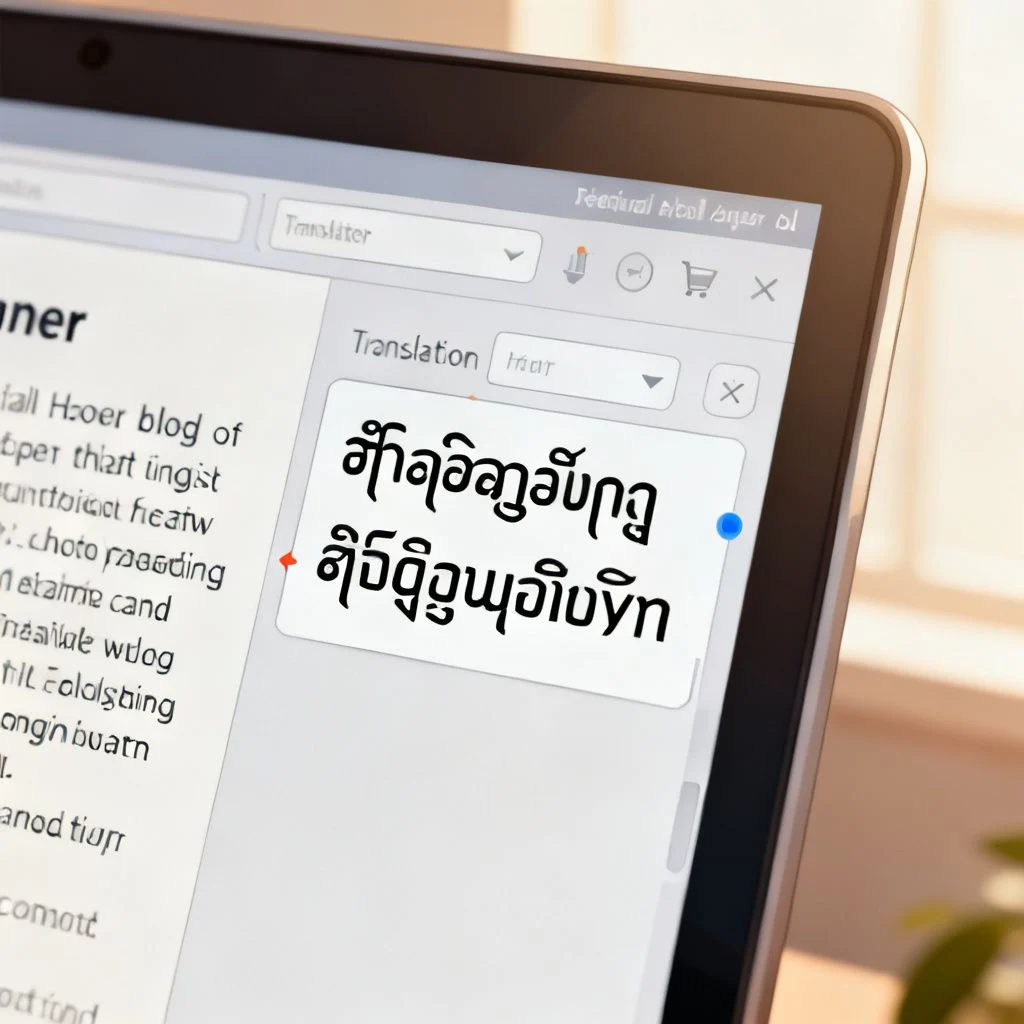
Type or paste your sentence. The translation appears in the right box, typically in a Burmese script. At this stage, do not trust the font you see on screen. Google Translate often delivers the underlying text in Unicode, but your browser’s font rendering might fool you.
Step 3: Verify the Unicode encoding.
Click the “Copy” icon below the translated text and paste it into a plain text editor. On Windows 10 or 11 that ships with a Myanmar‑enabled font like Myanmar Text or Noto Sans Myanmar, the characters should show correctly. If you see little squares, your system is missing a Unicode font, not a translation problem. You can download the free Noto Sans Myanmar font from Google Fonts to fix that.
Step 4: Check for Zawgyi contamination.
Some English‑to‑Myanmar translation tools piggyback on old Zawgyi‑based engines. To test, paste your Burmese text into an online Zawgyi‑Unicode detector (the Myanmar Tools website has one). If it flags Zawgyi code points, do not use that translation.
Pro Tip: When using Google Translate for more than a few sentences, break your English into short, clear statements. Long, complex English sentences can produce garbled Burmese grammar even if the Unicode is correct.
Known Limitation
Google Translate’s Burmese model is trained mostly on news and formal text. For casual conversation or domain‑specific jargon, you might need to edit the output for naturalness. But the Unicode encoding is usually fine. For mission‑critical translations, pairing Google Translate with a human review step is wise.
Browser Extensions and Online Converters That Guarantee Unicode Output
Sometimes you want a tool that sits right in your browser or translates whole web pages while preserving Unicode. Here are three I have tested that actually deliver English to Myanmar Unicode without shoving Zawgyi into the result.
| Tool | Unicode Guarantee | Offline Support | Best For | Cost |
|---|---|---|---|---|
| Google Translate (browser site) | Yes (if verified) | No | Quick sentences | Free |
| Microsoft Translator (Edge Add‑on) | Always Unicode | No | Full webpage translation in Burmese | Free |
| Myanmar Tools Unicode Converter | Yes | Partially (downloadable version) | Converting existing Zawgyi text to Unicode, plus translation | Free |
| Ayar Myanmar Unicode Input (Chrome extension) | Yes | Works offline after install | Typing directly in Unicode while seeing English phonetics | Free |
Of these, Microsoft Translator has a distinct advantage: when you translate a whole webpage to Burmese, the output is strictly Unicode because Microsoft never adopted Zawgyi. The resulting Burmese page is immediately readable, and you can copy any sentence knowing it is clean Unicode.
If you need a portable English to Myanmar Unicode converter that runs without an internet connection, the offline version of Ayar Myanmar Unicode Input is a strong choice. It works by phonetic mapping: you type English letters roughly representing sounds, and it outputs Unicode Burmese instantly.
Pro Tip: Avoid browser shortcuts that claim to “download” a translated page as a PDF; that often captures the rendered text as images or Zawgyi‑infected files. Instead, select the translated content, copy it, and paste it into a proper Unicode document.
Desktop and Mobile Apps for English‑Myanmar Unicode Translation
For regular use, a dedicated app can simplify your workflow. My testing shows that mobile keyboards are not just for typing, they can act as translation aids when combined with other apps.
On Android:
Install Gboard and add Burmese as a language. When you switch to the Burmese keyboard, you can type English words phonetically, and Gboard suggests Burmese Unicode equivalents in real time. This works as a live English‑to‑Myanmar Unicode translator. To translate full sentences, first draft in English in any notes app, then use the Microsoft Translator app (free on Android) to convert the whole text to Burmese and share it directly. The output is Unicode by default.
On iOS (iPhone/iPad):
The built‑in Burmese keyboard supports Unicode, and the iOS Translate app now includes Burmese. As of its 2023 update, Burmese translation quality is decent for simple sentences. Always confirm the output in the Notes app; if it looks jagged, you may need to toggle the font.
On Windows:
Download the Myanmar3 Unicode Keyboard layout from the Myanmar Unicode website. Once installed, you can type in English and use the Google Input Tools Burmese extension to get phonetic suggestions in Unicode. For batch translation, the mTranslate desktop tool (lightweight, offline) can process text files while preserving Unicode encoding.
Pro Tip: If you frequently need to translate English to Myanmar Unicode for social media posts, try composing the text in a note app first, then paste it into the social platform. That way you avoid faulty auto‑conversion that some apps apply behind the scenes.
Which Method Fits Your Daily Routine?
- Casual chat translation: Gboard or iOS Translate.
- Professional emails: Microsoft Translator app, then proofread.
- Whole documents: mTranslate or Google Translate + Noto Sans font check.
The common thread across all these tools is that you must always visually verify the output in a Unicode‑aware environment. Without that check, a perfectly good translation might still be mis‑encoded.
Common Mistakes and How to Fix Zawgyi/Unicode Mix‑ups
Even after using a good English to Myanmar Unicode converter, you might end up with a file or message that contains both Zawgyi and Unicode characters, a frustrating snag. Here is how to spot and fix that.
Mistake 1: Copying translated text from an old website.
Some older Myanmar websites still serve Zawgyi‑embedded fonts. If you highlight Burmese text on such a page and copy it, the clipboard may capture Zawgyi code points even though the page looks normal. Solution: paste into a Unicode‑to‑Zawgyi converter first to see what you are dealing with, then use the Zawgyi to Unicode conversion function (Myanmar Tools does this well) to get clean text.
Mistake 2: Mixing fonts in the same document.
If you paste a Unicode translation into a Word document that previously used a Zawgyi font, the font substitution can corrupt the display. Always set the whole document’s complex script font to Myanmar Text or Noto Sans Myanmar before pasting any Burmese.
Mistake 3: Sending Burmese via SMS or email headers.
Older SMS systems strip Unicode information. Stick to internet‑based messaging apps like WhatsApp or Telegram that fully support Unicode Transmission Format.
Pro Tip: After converting or translating, run your Burmese text through the Unicode Consortium’s normalization test page (it checks for valid code point sequences). If the page shows no errors, your text is clean.
Checking that your Burmese output is genuinely Unicode does not require deep technical knowledge. The three‑second rule: paste it into Google’s Noto preview site. If it looks balanced, with vowels placed around consonants correctly and no empty boxes, you are safe. That simple habit has saved me from sending garbled memos more times than I can count.
—
Key Takeaways
- Always translate English to Myanmar Unicode using tools that explicitly output Unicode (Google Translate, Microsoft Translator, Ayar Myanmar), not legacy converters.
- Verify the result in a Unicode‑aware environment (Notepad with Myanmar font, Noto preview) to catch Zawgyi contamination instantly.
- Zawgyi encoding still lurks on older Myanmar websites, so copy Burmese text carefully and convert if you are unsure.
- Mobile apps like Gboard and iOS Translate give you convenient English‑to‑Myanmar Unicode on the go, but checking output remains essential.
- For professional or bulk work, pair translation with a human review to catch semantic errors that machine translation might introduce.
Frequently Asked Questions
Q: Can I translate English to Myanmar Unicode for free?
A: Yes, tools like Google Translate and Microsoft Translator are completely free and produce Unicode Burmese output. Just verify the encoding by pasting into a plain text editor that supports Myanmar fonts.
Q: Is Google Translate Myanmar output in Unicode?
A: Google Translate gives Unicode Burmese text by default. However, your browser’s font rendering or a missing system font might make it look broken. Test by copying the text into Notepad on a current Windows system.
Q: How do I convert Zawgyi text to Unicode after translating English?
A: Use a dedicated converter like the Myanmar Tools Unicode Converter online, paste your Zawgyi text, and it instantly returns clean Unicode. This works if your translation accidentally produced Zawgyi.
Q: What is the best app to translate English to Myanmar Unicode on mobile?
A: On Android, Gboard with the Burmese phonetic keyboard is excellent. On iPhone, the built‑in Translate app with Burmese support does the job. Both output Unicode.
Q: Why does my Burmese translation look like boxes or question marks?
A: That means your device lacks a Unicode Myanmar font. Install Noto Sans Myanmar from Google Fonts, then restart the app; the boxes should turn into proper Burmese characters.
Q: Can I translate English to Myanmar Unicode offline?
A: Yes, offline tools like the Ayar Myanmar Unicode Input extension for Chrome or the mTranslate desktop application work without internet once installed.
Q: Does Facebook automatically convert Burmese to Unicode?
A: Facebook supports Unicode Burmese fully. If you post text that was originally Zawgyi, Facebook’s built‑in converter may try to fix it, but the result is not always perfect. It is safer to post only verified Unicode text.
Q: Which Myanmar font is recommended for clear Unicode display?
A: Noto Sans Myanmar by Google provides the most consistent rendering across devices, and it is the default on many newer Android phones.
Q: Can I use Voice Typing to translate English to Myanmar Unicode?
A: Google’s voice input works in English but not directly for Burmese phonetic output. However, you can dictate in English, get text, then translate to Burmese Unicode using Google Translate in real time.
References & Further Reading
- Unicode Consortium, Myanmar Code Chart (PDF): https://unicode.org/charts/PDF/U1000.pdf
- Google Translate Burmese support page: https://translate.google.com/
- Microsoft Translator languages list: https://www.microsoft.com/translator
- Myanmar Unicode & NLP Research Center tools: https://www.mmunicode.org/
- Noto Fonts download for Myanmar: https://fonts.google.com/noto/specimen/Noto+Sans+Myanmar
—
About This Article: This guide was put together based on years of working with Myanmar script localization and countless hours testing translation tools across Windows, Android, and iOS. The aim is to give you a straightforward, verified path to translate English to Myanmar Unicode without getting tangled in the old Zawgyi problem that still trips up so many users.