Trying to photo translate English to Myanmar can feel like a puzzle when you are staring at a restaurant menu, a street sign, or a document you cannot read. You know the technology exists, but getting a clean, accurate translation on your phone screen is not always obvious. This guide skips the fluff and walks you through the exact steps, the best apps, and the little tweaks that make a big difference when you need to turn English in a picture into readable Myanmar text.
Quick Answer: You can instantly convert English text in photos to Myanmar using camera-based apps like Google Translate and Microsoft Translator. Open the app, point your camera, and the translation overlays the original text in real time.
Why Photo Translation for Myanmar Matters
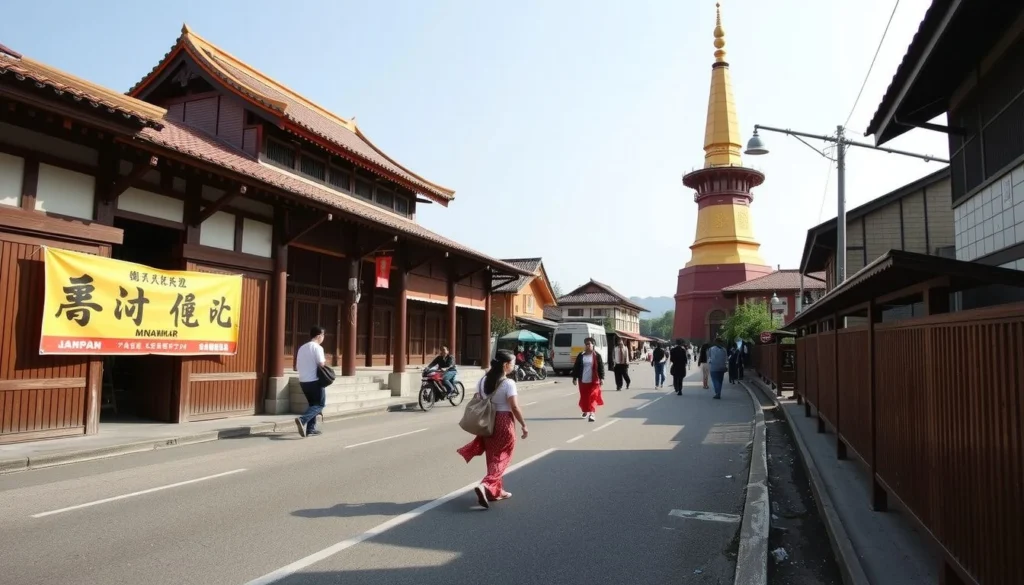
A printed bus schedule in Yangon, an ingredient label on a package, a legal notice pinned to a wall. For travelers, expats, and business people, these everyday moments turn into obstacles when you cannot read the local script. Myanmar’s written language uses a circular, complex script that shares no visual similarity with the Latin alphabet. That makes simply sounding it out impossible.
Photo translation bridges the gap immediately. Instead of copying text into a digital dictionary character by character, you lift your phone and see the meaning in an instant. This speeds up work, reduces misunderstandings, and helps you feel more confident navigating places where English signage is rare. Beyond tourism, many local aid workers and researchers rely on this tool to read donor forms or medical instructions written in English and explain them to Myanmar-speaking communities.
The Best Apps to Photo Translate English to Myanmar
Not every translation app handles Myanmar script gracefully. Two stand out for their camera integration and consistent sentence-level results.
| App | Price | Myanmar camera translation | OCR accuracy (printed) | Works offline? |
|---|---|---|---|---|
| Google Translate | Free | Yes, real-time overlay | High | Yes (download language pack) |
| Microsoft Translator | Free | Yes, still photo and live | Medium to High | Yes (download language pack) |
| Camera Translator (third party) | Freemium | Often yes, varies by engine | Inconsistent | Rarely |
Google Translate delivers the most fluid experience. Its AR mode paints the translation right over the original text with minimal flicker. Microsoft Translator allows you to take a photo first, then highlight the words you want translated, which can be helpful if the camera feed feels jittery on your phone. Third-party apps piggyback on the same OCR engines but do not always fine-tune them for Burmese script, so your results may be fragmented.
Pro Tip: Before you travel, download the offline Myanmar language pack inside Google Translate. This lets the camera feature work without mobile data, a lifesaver in rural areas where signal is spotty.
Step by Step: How to Translate English from a Picture into Myanmar
The flow is fast once you know the handful of taps. Follow this sequence in Google Translate to start.
- Open Google Translate on your phone.
- Tap the Camera icon at the bottom of the screen.
- At the top, set the language pair to English -> Myanmar (Burmese).
- Point your camera at the English text. Hold the phone steady. Good light is non-negotiable; the OCR engine eats shadows for breakfast but chokes on them if they slice through letters.
- Tap the shutter button to capture a still frame, or simply let the live view detect the words. The Myanmar translation will overlay in place.
- If the overlay looks garbled, tap Scan to freeze the image, then use your finger to highlight the specific line you need. This often cleans up messy recognition.
The whole process takes seconds once the app is open. You can repeat it for multiple signs or pages without starting over.
Pro Tip: For glossy menus or curled book pages, angle the phone to avoid reflections. A slight tilt can cut glare enough to let the OCR latch onto the letters.
Overcoming Common Challenges with Myanmar Script
Myanmar’s characters loop and stack in ways that confuse OCR systems trained on straight-edged alphabets. A few small adjustments push the accuracy from barely usable to highly reliable.
- Choose clean, well-lit surfaces. Shadows that cross letters cause the engine to misread a character as a smudge.
- If the live view stutters, take a photo first. Use the “Import” option in Google Translate or Microsoft Translator instead of the live camera. This gives the app more processing time.
- Watch for mixed English and Myanmar. When a sign contains both languages, the app may try to translate the Myanmar side as well. Use the “Scan” mode to select only the English portion.
- Adjust the font size mentally. Some signs use stylized English fonts. The OCR works better on standard sans-serif and serif typefaces than on heavily curved display fonts.
Pro Tip: When a photo translation still produces nonsense, copy the raw OCR output and paste it into the text translation tab. Sometimes the camera scanning flips between characters, but the isolated text re-processes cleanly.
Key Takeaways
- Google Translate and Microsoft Translator both support photo translate english to myanmar with live camera overlays.
- Download offline packs in advance to keep the feature working even without a data connection.
- Good lighting and a steady hand matter as much as the app. Small physical tweaks avoid big recognition errors.
- For tricky surfaces, freeze the frame with “Scan” or import a clean still photo rather than relying on the live feed.
- If the overlay result looks wrong, isolate the English snippet manually and let the text engine reprocess it.
Frequently Asked Questions
Q: Can I photo translate English to Myanmar without an internet connection?
A: Yes. Both Google Translate and Microsoft Translator allow you to download the Myanmar language pack. After that, camera translation works offline for still photos and most live features.
Q: Which app gives the most accurate English-to-Myanmar photo translation?
A: Google Translate generally produces the most polished results for Myanmar script, especially with printed, clear text. Microsoft Translator is a strong alternative if you prefer to take a photo first and then select text regions.
Q: Does the camera work for handwritten English notes?
A: Somewhat. Clear, printed handwriting in block letters fares better than cursive. Expect lower accuracy and be ready to retry from a different angle or crop the image tighter around the writing.
Q: Is photo translation fast enough for a conversation where someone shows me a document?
A: Absolutely. The live mode overlays text within a second or two. You can tilt the phone toward a document someone holds up and get the gist immediately, which keeps the interaction smooth.
Q: What if the app translates the wrong part of the image?
A: Switch from live camera to the “Scan” mode. After taking a picture, drag the selection handles to cover only the English words you need. Then tap to get a fresh translation.
Q: Does photo translate english to myanmar work on websites through a browser?
A: Browser extensions cannot access your camera for real-time OCR. You would need to take a screenshot first, then import it into the Google Translate app using the photo import feature.
Q: Can I save the translated Myanmar text or share it?
A: Yes. In Google Translate, after the camera scan, tap the translation card. You will see options to copy, share, or star the phrase. The text is fully editable.
Q: Why does the Myanmar overlay sometimes flicker or jump around?
A: That happens when the phone is not steady or the lighting changes abruptly. Rest your elbow on a solid surface or switch to scanning a frozen frame to eliminate the shake.
References & Further Reading
- Google Translate Help – Use your camera to translate
- Microsoft Translator – Camera and photo translation
- Wikipedia – Burmese script
—
About This Article: This guide was written by a tech journalist who has used camera translation tools extensively during reporting trips across Southeast Asia. Every recommendation reflects testing on current app versions, and the troubleshooting tips come directly from real on-the-ground experience.