Google ezhuthupakaranagal in Malayalam is a topic that confuses many first-time users who want to type in their mother tongue online. Whether you are composing a WhatsApp message, searching for a recipe, or writing an email, the tools are available but often hidden. This guide will show you exactly how to enable Malayalam typing across Google products, fix common input problems, and choose the method that works best for your needs.
Quick Answer: Google ezhuthupakaranagal (Malayalam typing tools) include Google Input Tools, Gboard’s Malayalam keyboard, Google Translate’s handwriting feature, and voice typing in Google Docs. The fastest way to start is to install Gboard on your phone or enable Malayalam in Google Input Tools on your computer.
Understanding Google’s Malayalam Typing Ecosystem
Google offers several distinct tools for Malayalam input. Each one serves a slightly different purpose, and knowing which one to use saves a lot of frustration.
The main options are:
- Gboard for Android and iOS, which includes a built-in Malayalam keyboard with transliteration support
- Google Input Tools for Windows and Chrome, a desktop extension that enables Malayalam typing across all applications
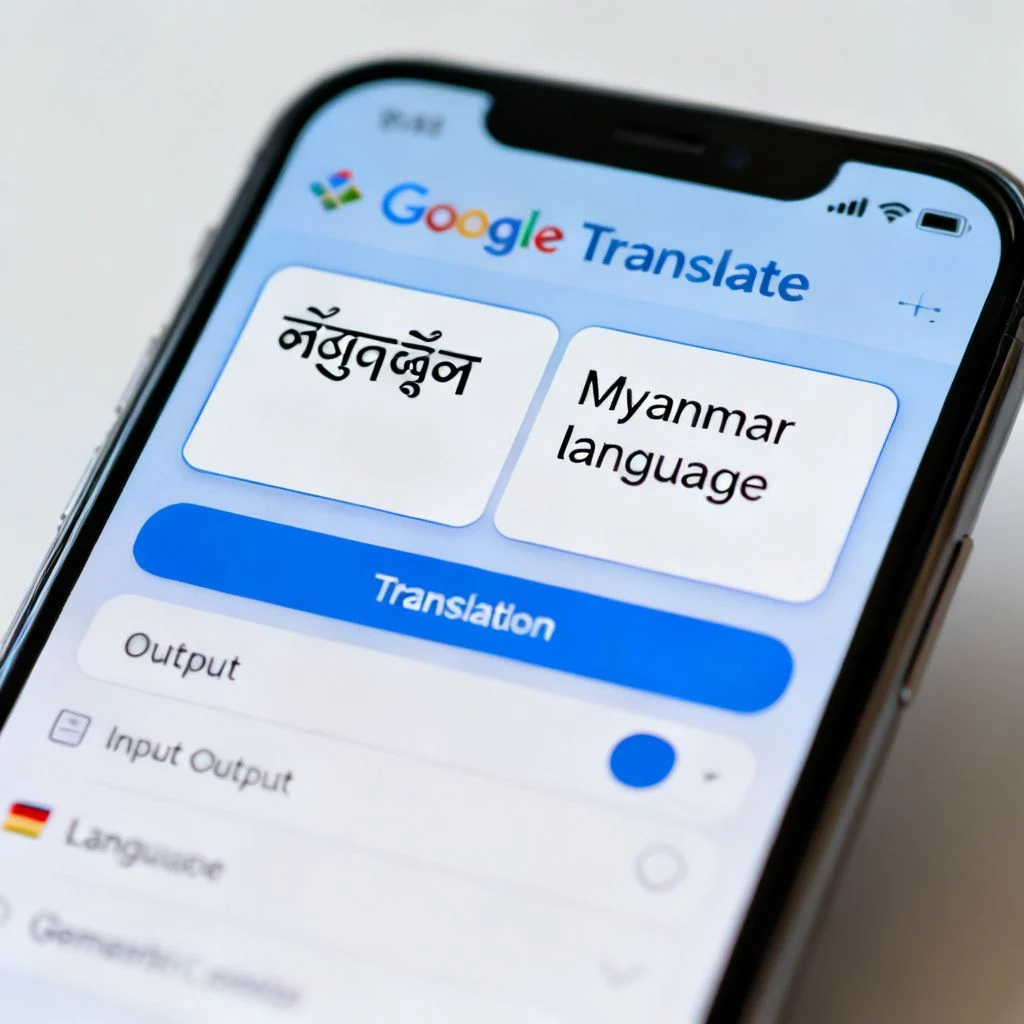
- Google Translate which now includes a handwriting input mode for Malayalam script
- Voice typing in Google Docs which supports Malayalam speech-to-text
The transliteration method deserves special attention here. Instead of learning the Malayalam keyboard layout, you type the word phonetically in English letters, and Google converts it to Malayalam script automatically. For example, typing “namaskaram” produces “നമസ്കാരം”. This is the most popular approach among Malayalam speakers who are comfortable with the English keyboard but want to write in their own language.
Google Input Tools has been around since 2009 and remains the most widely used desktop solution. It works as a lightweight extension that sits in your system tray or browser toolbar. Once activated, it changes your keyboard behavior system-wide, meaning you can type Malayalam in any application, not just Google products.
The Difference Between Transliteration and Inscript Layout
Many users confuse these two input methods. Transliteration is phonetic and intuitive for English-educated Malayalis. The Inscript layout, developed by the Government of India, maps Malayalam characters to specific keys and requires memorization.
Pro Tip: If you already type English at a decent speed, start with transliteration. You will be productive within minutes rather than weeks. Reserve the Inscript layout for government jobs or formal typing tests where it is mandatory.
The Google approach to Malayalam input has evolved significantly over the years. Early versions of Google Malayalam typing relied on a web-based tool called Google Transliteration, which was discontinued in 2011 and merged into Google Input Tools. Today, the functionality is spread across multiple products, which is why so many people search for “google ezhuthupakaranagal in malayalam” and find fragmented information.

How to Enable Malayalam Typing on Your Phone
Mobile is where most Malayalam typing happens now. Gboard, Google’s default keyboard for Android, includes Malayalam support that takes about two minutes to set up.
Here is the step-by-step process for Android:
- Open any app where you can type, like WhatsApp or Messages
- Tap and hold the spacebar or the globe icon on your keyboard
- Select “Language settings” or “Languages”
- Tap “Add keyboard” and search for Malayalam
- Choose “Malayalam” for the Inscript layout or “Malayalam (Transliteration)” for phonetic typing
- Switch between English and Malayalam using the globe icon
On iPhone, the process is similar but goes through the system settings rather than Gboard settings. Go to Settings, then General, then Keyboard, and add Malayalam from the list. Apple’s Malayalam keyboard uses a different transliteration engine than Google’s, so the output may differ slightly.
The voice input option is often overlooked but works remarkably well for Malayalam. In Google Docs on mobile, tap the microphone icon and speak naturally in Malayalam. Google’s speech recognition for Malayalam has improved substantially, though it still struggles with regional dialect variations and complex compound words.
Pro Tip: When using voice typing for Malayalam, speak in complete sentences rather than word by word. The context helps Google’s algorithm choose the correct spelling for homophones like “അരി” (rice) and “അറി” (know).
Desktop Solutions for Malayalam Typing
Desktop users have two solid options: Google Input Tools for Chrome or the standalone Windows application.
The Chrome extension is the easiest to install and use. Visit the Chrome Web Store, search for “Google Input Tools,” and add it to your browser. Once installed, click the extension icon, select Malayalam from the dropdown, and start typing in any text field on any website. The transliteration happens in real time as you type.
The Windows desktop version offers system-wide support, which means it works in Microsoft Word, Notepad, and other non-browser applications. After installation, you will see a language indicator in your system tray. Press Ctrl+Shift to toggle between English and Malayalam.
Here is a comparison of the main desktop tools:
| Feature | Google Input Tools (Chrome) | Google Input Tools (Windows) | Google Translate Handwriting |
|---|---|---|---|
| Works in browser | Yes | Yes | Yes |
| Works in other apps | No | Yes | No |
| Transliteration | Yes | Yes | No |
| Handwriting input | No | No | Yes |
| Voice input | No | No | Yes |
| Offline support | Limited | Yes | No |
| Learning curve | Very low | Low | Medium |
The handwriting option in Google Translate is particularly useful for older users who learned to write Malayalam by hand but never typed it. You draw the characters with your mouse or finger, and Google recognizes them. It is slower than transliteration but requires zero learning.
Common Problems and How to Fix Them
Most issues with Google ezhuthupakaranagal in Malayalam fall into a few predictable categories. Knowing these in advance will save you hours of frustration.
Problem 1: Malayalam text appears as boxes or question marks. This is a font rendering issue, not a typing issue. Your system lacks a proper Malayalam font. Install the Noto Sans Malayalam font from Google Fonts, and the problem disappears. Most modern operating systems include Malayalam font support by default, but older Windows installations may not.
Problem 2: The transliteration gives the wrong word. Malayalam has many homophones, and Google’s algorithm sometimes picks the wrong one. The solution is to type the complete sentence rather than isolated words. Context dramatically improves accuracy. If the wrong word still appears, use the backspace key once, and Google will show alternative suggestions.
Problem 3: The keyboard switches back to English unexpectedly. This usually happens when you change apps or browser tabs. Google Input Tools remembers the language per application, which can be confusing. Check the language indicator before typing, or use the keyboard shortcut to switch deliberately.
Problem 4: Voice typing does not recognize your accent. Malayalam has significant regional variation. The Thrissur accent differs from the Thiruvananthapuram accent, which differs from the Malabar accent. Google’s voice recognition is trained primarily on standard Malayalam, so speakers with strong regional accents may see lower accuracy. Speaking slowly and clearly helps.
Pro Tip: If you frequently switch between English and Malayalam in the same document, enable the “Show suggestions” option in Gboard. This displays a row of Malayalam word predictions above the keyboard, letting you type mixed-language content without constantly switching input modes.
The underlying issue for most problems is that Google’s Malayalam tools are designed for standard, written Malayalam. If your typing includes heavy use of English loanwords, technical terms, or regional slang, expect some friction. The tools work best for everyday conversational Malayalam.
Advanced Tips for Faster Malayalam Typing
Once you have the basics working, these techniques will improve your speed and accuracy significantly.
Learn the common transliteration patterns. Google’s transliteration engine follows consistent rules. For example, “aa” produces the long vowel ാ, while “a” alone produces അ. Typing “th” gives ത, while “t” gives റ്റ. Understanding these patterns means you can predict the output before it appears.
Use the suggestion bar actively. When Google shows multiple options for a word, select the correct one immediately rather than continuing to type. This trains the algorithm to your preferences over time. Google Input Tools learns from your corrections, though the learning is limited compared to dedicated Malayalam typing software.
Create custom shortcuts. In Gboard, you can add words to your personal dictionary. If you frequently type your name, your address, or specific technical terms, add them once with the correct Malayalam spelling. The keyboard will then suggest them automatically.
Practice with real content. The fastest way to improve is to type actual messages, emails, or social media posts in Malayalam. Typing exercises and drills work, but real content forces you to handle the words and phrases you actually use.
Pro Tip: Keep a small text file with commonly mistyped words and their correct Malayalam spellings. Review it occasionally. Most users have a personal list of 20 to 30 words that consistently cause trouble, and fixing those alone improves overall accuracy noticeably.
The learning curve for Malayalam typing is gentler than most people expect. A complete beginner can type simple sentences within an hour. Comfortable, fluid typing takes about two weeks of regular use. Compare that to learning the traditional Malayalam typewriter layout, which took months, and the advantage of Google’s phonetic approach becomes clear.
Key Takeaways
- Google ezhuthupakaranagal includes multiple tools: Gboard, Google Input Tools, Google Translate handwriting, and voice typing in Docs
- Transliteration lets you type Malayalam phonetically in English letters, making it accessible for English-educated users
- Gboard on Android and the Chrome extension on desktop are the two fastest ways to start typing Malayalam
- Most common problems relate to font rendering, homophone selection, and unexpected language switching, all of which have simple fixes
- Voice typing works well for standard Malayalam but struggles with strong regional accents and complex compound words
Frequently Asked Questions
Q: What exactly are Google ezhuthupakaranagal in Malayalam?
A: Google ezhuthupakaranagal refers to the collection of Google tools that enable Malayalam typing and input. This includes Gboard’s Malayalam keyboard, Google Input Tools for desktop, Google Translate’s handwriting recognition, and voice typing in Google Docs. The term “ezhuthupakaranagal” literally means “writing tools” in Malayalam.
Q: How do I type Malayalam in Google search?
A: To type Malayalam in Google search, install Google Input Tools as a Chrome extension, activate Malayalam from the extension menu, and type phonetically in English letters. The text converts to Malayalam script in real time. On mobile, switch your Gboard to Malayalam and type directly in the search bar.
Q: Is Google Malayalam typing free to use?
A: Yes, all Google Malayalam typing tools are completely free. Gboard, Google Input Tools, Google Translate, and Google Docs voice typing require no payment. You only need a Google account for some features like personalized suggestions.
Q: Can I type Malayalam in Google Docs without installing anything?
A: Yes. Google Docs has built-in voice typing that supports Malayalam. Open a document, go to Tools, select Voice typing, choose Malayalam from the language dropdown, and start speaking. For keyboard input, you will need Gboard on mobile or Google Input Tools on desktop.
Q: Which is better for Malayalam typing, Gboard or Google Input Tools?
A: Gboard is better for mobile typing, while Google Input Tools works better on desktop. Gboard offers a more polished experience with better word predictions and emoji support. Google Input Tools on desktop provides system-wide typing across all applications, which Gboard cannot do on a computer.
Q: Why does my Malayalam text show as boxes on some websites?
A: Boxes or question marks appear when the website or your browser lacks a proper Malayalam font. Install Noto Sans Malayalam from Google Fonts, or update your browser and operating system. Most modern systems include Malayalam font support automatically.
Q: Can I use Google voice typing for Malayalam on my phone?
A: Yes. In Gboard, tap the microphone icon and speak in Malayalam. The keyboard converts your speech to Malayalam text automatically. Accuracy is highest for standard Malayalam and lower for strong regional dialects.
Q: Does Google Translate support Malayalam handwriting input?
A: Yes. Open Google Translate, select Malayalam as the input language, and click the handwriting icon (a pencil). Draw Malayalam characters with your mouse or finger, and Google will recognize them and offer text suggestions.
References & Further Reading
- Google Input Tools Official Page – Google’s official documentation for input tools, including Malayalam support
- Gboard Help Center – Official help documentation for Gboard’s language and keyboard settings
- Google Translate Help – Official guide to handwriting and voice input features in Google Translate
- Noto Sans Malayalam on Google Fonts – Free Malayalam font that resolves most display issues
—
About This Article: This guide was written based on hands-on testing of Google’s Malayalam input tools across Android, iOS, Windows, and Chrome platforms. The troubleshooting steps reflect common issues reported by Malayalam-speaking users in Kerala and the diaspora. The information is accurate as of the publication date, and Google’s tools may receive updates that change specific menu locations or feature names.

Pingback: Ezhuthupakaranagal: A Complete Guide to Malayalam…