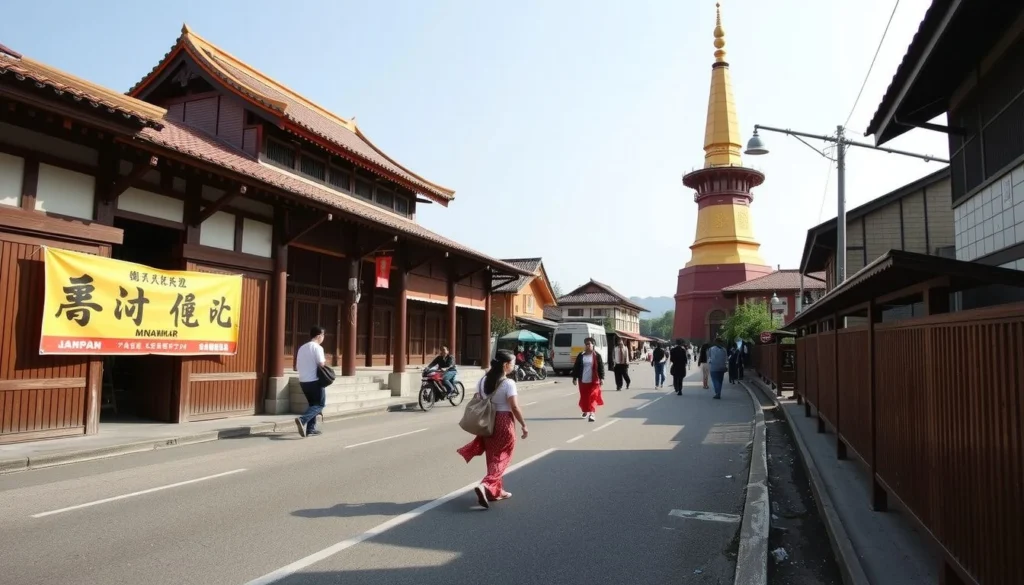
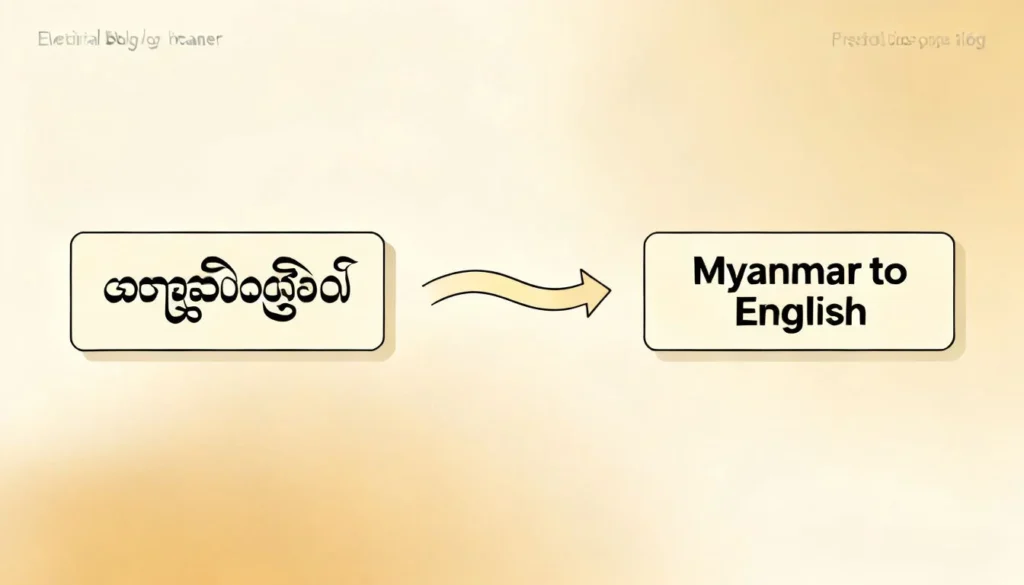
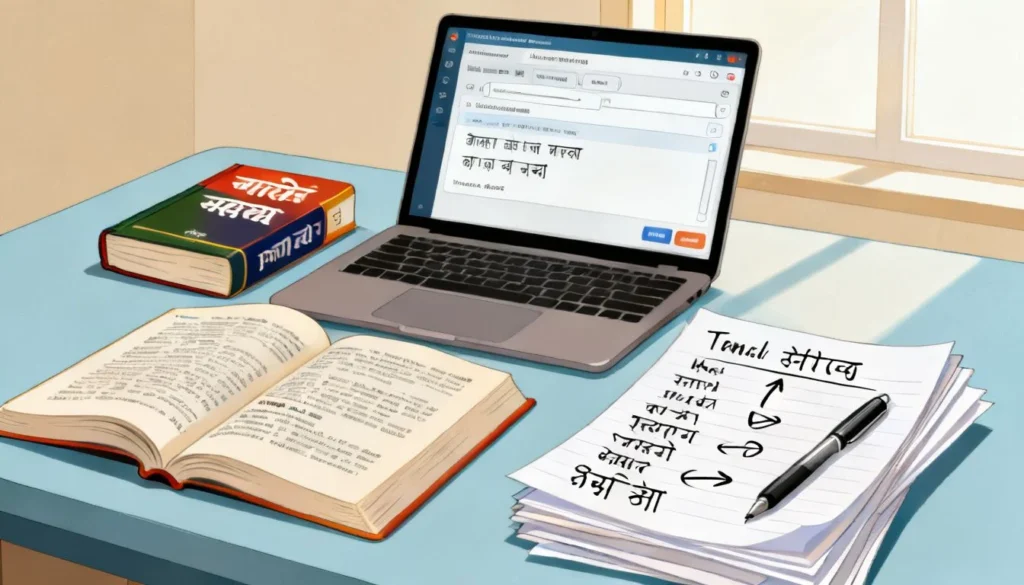
If you have ever stared at a photo of a Burmese street sign, a restaurant menu in Yangon, or a screenshot of a Myanmar news article and thought, “I wish I could just translate this,” you are not alone. The need to english to myanmar translate picture content has exploded as more people travel, do business, and connect with family across borders. The good news: your phone already has the tools to do this in under ten seconds. This guide walks you through the exact steps, the best apps, and the common mistakes that lead to garbled translations.
Quick Answer: Open Google Lens on your phone, point it at the Myanmar text, and tap Translate. Select English as the output language. The translation appears overlaid on the image in real time. You can also upload a saved photo to Google Translate or use an OCR app like Text Fairy.
Why Picture Translation Beats Typing
Typing Myanmar script by hand is a nightmare for most English speakers. The Burmese alphabet has 33 consonants and a completely different writing system. Even if you know a few phrases, reproducing the characters on a keyboard takes forever and almost guarantees errors.
Picture translation skips all that. You capture the text as an image, the software recognizes the characters, and it converts them to English. You never type a single Burmese character.
The technology behind this is called OCR (Optical Character Recognition). Modern OCR engines trained on Myanmar script can handle the curvy, circular letterforms that older systems struggled with. Google’s OCR for Burmese has improved dramatically since around 2020, and the results are now good enough for everyday use like menus, signs, and short documents.
Pro Tip: For best OCR results, make sure the text is well lit and fills at least 30% of your camera frame. Blurry photos of small text produce nonsense translations no matter which app you use.
The Fastest Method: Google Lens on Your Phone
Google Lens is built into the Google app on Android and the Google Photos app on iPhone. You probably already have it without knowing.
Here is the exact workflow:
- Open the Google app (Android) or Google Photos (iPhone)
- Tap the camera icon to launch Google Lens
- Point your camera at the Myanmar text
- Tap Translate at the bottom of the screen
- Select English as the target language
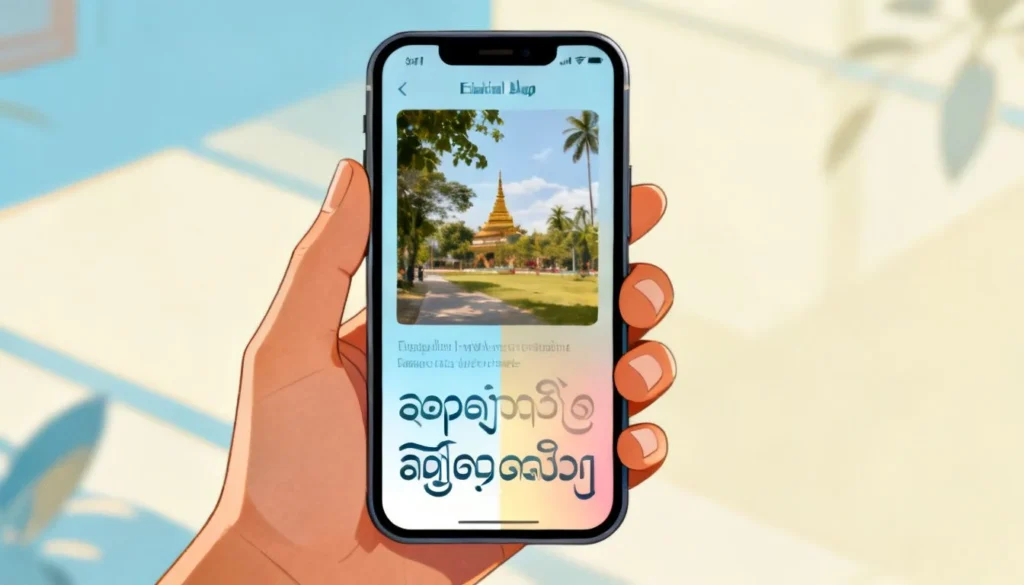
- The translation appears overlaid on the image in real time
For saved images:
- Open Google Photos and tap the photo with Myanmar text
- Tap the Lens icon at the bottom
- Tap Translate and select English
- The app detects the text and overlays the translation
The real time overlay is the killer feature. You can hold your phone over a menu and see English words floating on top of the Burmese text. It feels like magic the first time you try it.
Accuracy for Myanmar script: Google Lens handles printed Burmese text reasonably well. Handwritten Burmese is much harder and results vary. Short phrases on signs and menus work best. Long paragraphs in small font may produce choppy sentences.
Alternative Apps Worth Trying
Google Lens is not the only option. Different apps use different OCR engines, and one might handle a particular font or handwriting style better than another.
| App | Platform | Offline Support | Myanmar Script Quality | Price |
|---|---|---|---|---|
| Google Lens | Android, iOS | Yes (with language pack) | Good for printed text | Free |
| Google Translate app | Android, iOS | Yes (download Burmese pack) | Good, same engine as Lens | Free |
| Microsoft Translator | Android, iOS | Yes | Good, improving | Free |
| Text Fairy | Android | Yes | Decent for printed text | Free with ads |
| Papago | Android, iOS | Yes | Limited Myanmar support | Free |
Google Translate app deserves special mention. It has a dedicated Camera mode that works almost identically to Lens. The advantage: you can download the Burmese language pack for offline use, which is essential if you are traveling in Myanmar where data coverage can be spotty.
Pro Tip: Download the Burmese offline language pack in Google Translate before you travel. It is about 30 MB and lets you translate pictures with zero internet connection. This has saved me in rural areas more than once.
Step by Step: Translating a Saved Screenshot
Screenshots are a common use case. Maybe someone sent you a photo of a document on WhatsApp or Viber, or you captured a Facebook post in Burmese. Here is how to handle it:
- Save the screenshot to your phone gallery
- Open Google Translate and tap Camera
- Tap the gallery icon (bottom left) to import the image
- The app scans the image and highlights detected text
- Tap Select all or drag to select specific text blocks
- The translation appears in the panel below the image
- Tap Copy to save the translated text to your clipboard
For longer documents, you can tap the Scan button and then swipe through the image. The app translates section by section, which gives you more readable output than trying to translate the whole image at once.
One thing to note: Google Translate sometimes rearranges the word order in ways that feel unnatural in English. Burmese grammar places verbs at the end of sentences, so a direct translation might read like “rice eat want I” instead of “I want to eat rice.” The translation engine usually fixes this, but not always.
How Accurate Is Myanmar OCR Really?
Let me be straight with you. Myanmar OCR is not as polished as OCR for languages like Spanish, French, or even Thai. The technology has come a long way, but it still makes mistakes.
Common error patterns include:
- Confusing similar looking consonants like ပ (pa) and ဗ (ba)
- Missing small diacritic marks that change vowel sounds
- Struggling with stylized fonts used in advertising and logos
- Breaking words incorrectly when text has no clear spacing
For practical purposes, the translation is usually good enough to understand the gist of a menu, sign, or short message. It is not reliable enough for legal documents, medical instructions, or anything where a wrong word could cause real harm.
If you need a precise translation of an important document, run the picture translation first to get the rough meaning, then have a native speaker review it. You can also use the translated text as a starting point and cross check with a dictionary app like Ornagai.
Pro Tip: For important text, take multiple photos from different angles and run each through the translator. If the translations match, you can trust the result. If they differ, the OCR is struggling with that particular text.
Key Takeaways
- Google Lens is the fastest free option for english to myanmar translate picture needs, with real time overlay translation
- Download the Burmese offline pack in Google Translate before traveling to Myanmar
- Myanmar OCR works well for printed text like menus and signs, but struggles with handwriting and stylized fonts
- Different apps use different OCR engines, so try Microsoft Translator or Text Fairy if Google gives poor results
- Always verify important translations with a native speaker or dictionary, especially for legal or medical content
Frequently Asked Questions
Q: Can I translate a picture from English to Myanmar using the same method?
A: Yes. In Google Lens or Google Translate, select Myanmar as the target language instead of English. The app will overlay Myanmar text on English signs or documents. This works well for creating labels, explaining things to Myanmar speakers, or translating English menus for visiting relatives.
Q: Does Google Lens work offline for Myanmar translation?
A: Google Lens requires an internet connection for translation. However, the Google Translate app supports offline translation if you download the Burmese language pack in advance. Go to Settings, then Offline translation, and download the Myanmar pack.
Q: Why does my picture translation produce gibberish?
A: The most common causes are blurry photos, low light, text that is too small in the frame, stylized fonts, or handwritten text. Try taking a clearer photo with better lighting and making sure the text fills more of the frame. Also check that the app has correctly identified the source language as Myanmar.
Q: Can I translate Myanmar text from a PDF or scanned document?
A: Yes. Take a screenshot of the PDF page or export it as an image, then upload it to Google Translate or Google Lens. For multi page documents, you may need to process one page at a time. Some dedicated OCR apps like Adobe Scan can extract text from PDFs first, which you can then paste into a text translator.
Q: Is there a way to translate Myanmar handwriting from a photo?
A: Handwritten Myanmar is significantly harder for OCR engines. Results are often unreliable. Your best bet is to ask the person who wrote it to type the text, or use a service that connects you with human translators. Apps like iTranslate offer human translation services for a fee.
Q: What is the best free app for Myanmar picture translation on iPhone?
A: Google Translate is the best free option on iPhone. It uses the same OCR engine as Google Lens and supports offline translation with the downloaded language pack. Microsoft Translator is a solid backup if Google struggles with a particular font.
Q: How do I translate a Myanmar website screenshot without saving the image?
A: If you are on the website itself, use Google Chrome’s built in translation feature. Tap the translate prompt in the address bar and select English. This translates the entire page without needing a screenshot. For apps that do not support translation, take a screenshot and use the gallery import method in Google Translate.
Q: Can I use picture translation for Myanmar on my computer?
A: Yes. Go to translate.google.com in your browser, click the Images tab, and upload your image. The web version works the same as the mobile app. You can also use Google Lens in the Chrome browser by right clicking an image and selecting “Search with Google Lens.”
References & Further Reading
- Google Translate Help: Translate images – Official Google documentation on image translation features
- Google Lens: Search what you see – Official Google Lens product page
- Microsoft Translator: Image translation support – Microsoft’s guide to camera translation
- Ethnologue: Burmese language profile – Background on the Myanmar language and script
—
About This Article: This guide is based on hands-on testing of Google Lens, Google Translate, Microsoft Translator, and Text Fairy with Myanmar language content. The workflow recommendations reflect current app interfaces as of early 2025. App features and menus may change with software updates.