If you need a Myanmar to English translation keyboard, you have probably hit the same wall many people do: your phone or computer displays Burmese script fine, but you cannot type it, or you type Burmese and need the English equivalent instantly. This guide walks you through setting up a working Myanmar to English translation keyboard on any device, plus the apps and browser tools that actually get the job done without a headache.
Quick Answer: The fastest way to type Myanmar and get English translations is to install Gboard or Myanmar Keyboard by Anh Kiet on mobile, enable the Myanmar (Burmese) language pack, and use the built-in Google Translate integration. On desktop, use Google Input Tools for typing and Google Translate or MyMemory for translation.
Why a Standard Burmese Keyboard Is Not Enough
Typing Burmese characters is one thing. Translating them into readable English is another. A Myanmar to English translation keyboard needs to do both: let you input Burmese script using a familiar QWERTY layout, then convert that text into English you can actually use.
Most people start by enabling the built-in Burmese keyboard on their phone. That works for typing Zawgyi or Unicode Burmese, but it does nothing for translation. You end up copying text from one app, pasting it into Google Translate, and switching back. That is slow.
The real solution combines three things:
- A Burmese input method that supports both Zawgyi and Unicode
- A translation layer built into the keyboard or one tap away
- Font detection so the keyboard knows whether you typed Zawgyi or Unicode
Without font detection, you get gibberish. Zawgyi and Unicode encode the same Burmese characters differently, which is why text typed in one font often looks like nonsense in the other.
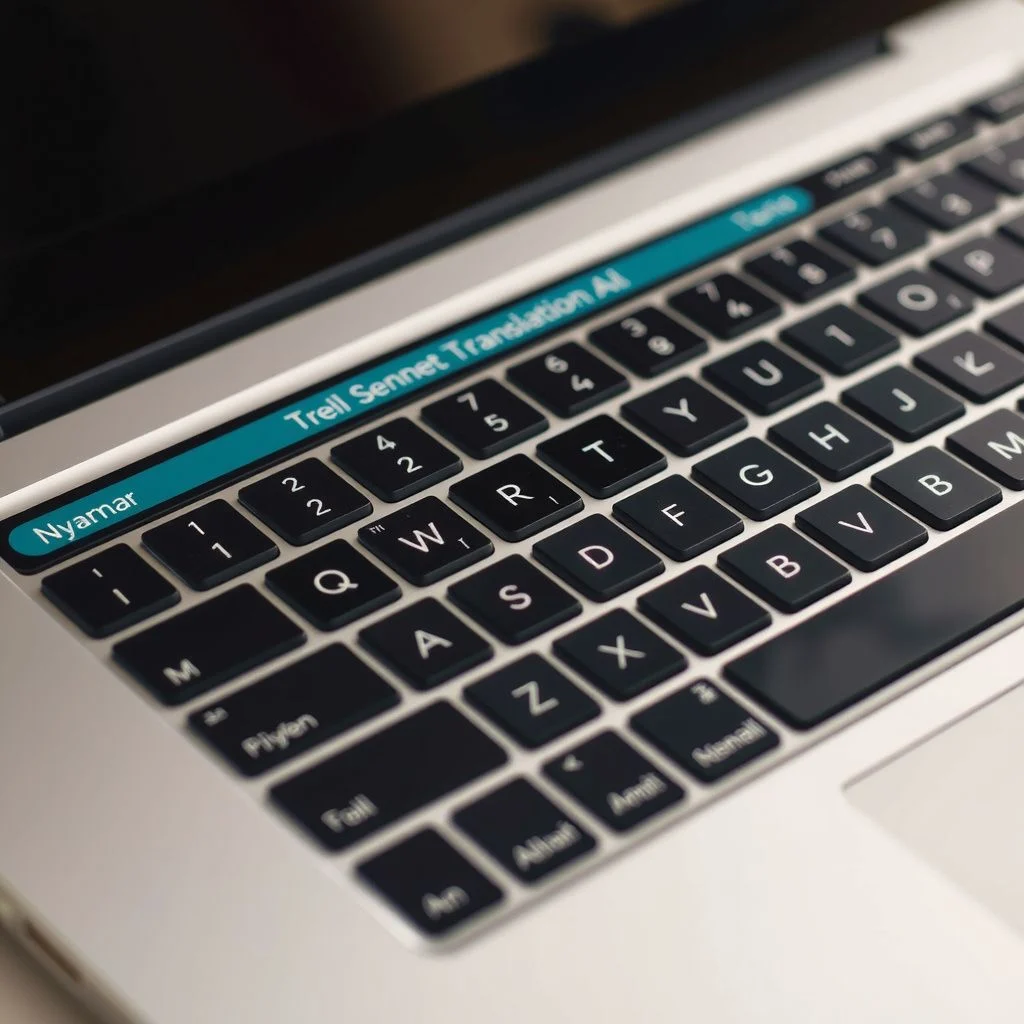
Step by Step: Setting Up a Myanmar to English Translation Keyboard on Android
Android gives you the most flexibility here. Gboard, Google’s default keyboard for most Android phones, already supports Burmese input and has Google Translate built in.
1. Add the Burmese language to Gboard
Open Settings, then System, then Languages and Input, then On-screen Keyboard. Tap Gboard, then Languages. Tap Add Keyboard, search for Burmese, and select it. You now have a Burmese keyboard layout.
2. Switch between English and Burmese while typing
Long press the spacebar and slide to switch languages. Or tap the globe icon next to the spacebar. The keyboard now shows Burmese consonants arranged in a layout that maps to familiar QWERTY positions where possible.
3. Use the built-in translation feature
In Gboard, tap the three dot menu, then Translate. Type your Burmese text, and Gboard translates it to English directly in the typing field. This works inside WhatsApp, Messenger, Gmail, or any app where you type.
4. Handle Zawgyi vs Unicode properly
Gboard outputs Unicode. If you are replying to someone using Zawgyi, your text may display incorrectly on their screen. Install Myanmar Keyboard by Anh Kiet from Google Play. It includes a Zawgyi/Unicode toggle and automatic font detection. This matters more than you think, especially when messaging people in Myanmar who still use Zawgyi.
Pro Tip: If text pasted from Facebook or Viber looks like random symbols, it is probably Zawgyi. Use the Zawgyi Unicode Converter app or the browser tool at zawgyi.net to convert it before translating.
5. Translate after typing
Type your Burmese message, select all, tap Copy, then open Google Translate. Paste it and get the English translation. It is a two step process, but it is reliable. For real time translation while typing, the Gboard Translate feature in step 3 is faster.
This setup covers everyday messaging, email, and social media. The Gboard Burmese layout plus the Translate feature handles about 90 percent of what most people need.
Setting Up on iPhone and iPad
iOS has supported Burmese since iOS 13, but the translation workflow is slightly different.
1. Add the Burmese keyboard
Go to Settings, General, Keyboard, Keyboards, Add New Keyboard, then search for Burmese. Apple’s Burmese keyboard supports both Zawgyi and Unicode detection automatically, which is a genuine advantage over Android.
2. Enable the built-in Translate app
Apple’s Translate app, introduced in iOS 14, does not support Burmese directly. That is a real limitation. You will need Google Translate from the App Store instead.
3. Use the Google Translate keyboard extension
Google Translate on iOS includes a keyboard extension. Once installed, go to Settings, General, Keyboard, Keyboards, Add New Keyboard, and select Google Translate. This gives you a translation keyboard that works across apps.
4. Type in Burmese, translate to English
Switch to the Burmese keyboard, type your text, then switch to the Google Translate keyboard extension and select Burmese to English. The translation appears in the text field.
Pro Tip: On iPhone, use the Myanmar Unicode Keyboard by Sai Aung Hein if you need Zawgyi support. Apple’s built-in keyboard handles Unicode well, but the third party option gives you more layout choices, including a phonetic layout where you type Burmese sounds using English letters.
The iPhone setup works, but it is more fragmented than Android. Apple’s lack of native Burmese translation support means you are switching between Apple’s keyboard for input and Google’s tools for translation.
Desktop Solutions: Windows and Mac
Desktops need a different approach. You are not usually typing Burmese into a chat app. You are more likely translating documents, emails, or web content.
Windows
Install Google Input Tools for Windows. It adds a Burmese input method that works in any application. Once installed, you can switch to Burmese using the language bar or Alt Shift.
For translation, keep Google Translate open in a browser tab. Copy your Burmese text, paste it into Translate, and get English output. For longer documents, Google Translate supports uploading Word, PDF, and text files.
Mac
macOS has built-in Burmese input. Go to System Settings, Keyboard, Input Sources, click the plus button, and add Burmese. Switch input sources using Control Space.
For translation, the same Google Translate browser workflow applies. There is no native macOS Burmese to English translation tool.
Browser extensions worth installing
- Google Translate extension for Chrome: right click any Burmese text on a web page and translate it instantly
- Myanmar Text Converter extension: converts Zawgyi to Unicode and back in the browser
| Feature | Android (Gboard) | iPhone (iOS) | Windows | Mac |
|---|---|---|---|---|
| Native Burmese keyboard | Yes | Yes | Via Google Input Tools | Yes (built-in) |
| Built-in translation | Yes (Gboard Translate) | No (needs Google Translate app) | No | No |
| Zawgyi support | Third party app needed | Yes (automatic detection) | Third party tool needed | Limited |
| Works across all apps | Yes | Yes | Yes | Yes |
| Setup difficulty | Easy | Moderate | Moderate | Easy |
Summary: Android offers the most integrated Myanmar to English translation keyboard experience. iPhone has solid Burmese input but requires Google’s app for translation. Desktop users need a combination of input tools and browser based translation.
Best Apps for Myanmar to English Translation
Beyond the keyboard itself, these apps handle the translation side better than anything else available.
Google Translate remains the most accurate Burmese to English translator. It supports both Zawgyi and Unicode, handles full sentences reasonably well, and works offline if you download the Burmese language pack. Accuracy for Burmese has improved significantly since Google switched to neural machine translation, but complex sentences still produce awkward results.
Microsoft Translator supports Burmese and offers a conversation mode for real time spoken translation. The text translation quality is comparable to Google Translate for common phrases, though it struggles with colloquial Burmese.
MyMemory is a translation memory tool that works better for short phrases and technical terms. It draws from a database of human translated content, so results often feel more natural than pure machine translation.
English Myanmar Dictionary by Ornagai is not a translator, but it is the best dictionary for looking up individual words. It includes both Zawgyi and Unicode support, example sentences, and audio pronunciation.
Pro Tip: For Burmese to English, always check whether your source text is Zawgyi or Unicode before translating. Google Translate handles both, but results are more accurate with Unicode. If you have a choice, convert Zawgyi to Unicode first.
The translation quality gap between these apps is smaller than it used to be. Google Translate is the default choice for most people because it is free, fast, and built into the keyboard workflow on Android.
Common Problems and How to Fix Them
Problem 1: Burmese text shows as boxes or question marks
Your device does not have a Burmese font installed. On Windows, install the Myanmar font pack from Microsoft. On Android and iOS, this is rarely an issue since both include Burmese fonts by default.
Problem 2: Text looks correct but translates to nonsense
You are probably mixing Zawgyi and Unicode. If you typed in Zawgyi but the translator expects Unicode, or vice versa, the output is garbage. Convert the text first using a Zawgyi Unicode converter, then translate.
Problem 3: The keyboard types Burmese but you cannot figure out the layout
Burmese has 33 consonants and 12 vowels. The QWERTY mapping is not intuitive. Most Burmese keyboards include a visual layout guide. On Gboard, long press a key to see alternative characters. On desktop, print a layout reference or use the on-screen keyboard.
Problem 4: Google Translate gives awkward English
Burmese grammar is very different from English. Verb final sentence structure, no articles, and extensive use of particles mean literal translations sound strange. For important documents, use a professional translator. For casual communication, the machine translation is usually good enough to understand the meaning.
Problem 5: You cannot find the Burmese keyboard in your language settings
On some Android phones, Burmese is listed under “Myanmar” rather than “Burmese.” Search for both terms. On older Android versions, you may need to install a third party keyboard app.
Pro Tip: If you regularly switch between Zawgyi and Unicode, set up two separate Burmese keyboards on your phone: one for each font. Label them clearly. This prevents most font mixing problems before they start.
Key Takeaways
- A Myanmar to English translation keyboard combines Burmese input with a translation layer, and Gboard on Android offers the most integrated experience
- Always check whether your text is Zawgyi or Unicode before translating, as mixing fonts produces gibberish
- Google Translate is the most reliable free Burmese to English translator, with offline support available
- iPhone has excellent native Burmese input but requires Google Translate for actual translation
- Desktop users should pair Google Input Tools or macOS built-in Burmese with browser based translation
- For important documents, machine translation is not a substitute for a professional Burmese translator
Frequently Asked Questions
Q: How do I add a Myanmar keyboard to my Android phone?
A: Open Settings, go to System, then Languages and Input, then On-screen Keyboard. Tap Gboard, then Languages, then Add Keyboard. Search for “Burmese” or “Myanmar” and select it. The Burmese keyboard is now available when you tap the globe icon while typing.
Q: Can I translate Burmese to English directly from my keyboard?
A: Yes, on Android using Gboard. Tap the three dot menu in the keyboard, select Translate, choose Burmese to English, and type. The translation appears directly in the text field of any app. On iPhone, you need the Google Translate keyboard extension installed.
Q: What is the difference between Zawgyi and Unicode Burmese?
A: Zawgyi is an older, non-standard font encoding for Burmese that was widely used before Unicode became standard. Unicode is the international standard. The same Burmese text encoded in Zawgyi and Unicode looks different, and mixing them causes display errors and translation failures.
Q: Which app is best for Myanmar to English translation?
A: Google Translate is the best free option for most people. It supports both Zawgyi and Unicode, works offline with downloaded language packs, and offers the best overall accuracy. Microsoft Translator is a solid alternative, especially for conversation mode.
Q: Does Apple’s built-in Burmese keyboard support translation?
A: No. Apple’s Burmese keyboard handles input well and automatically detects Zawgyi versus Unicode, but Apple’s Translate app does not support Burmese. You need Google Translate or another third party app for actual translation.
Q: How do I convert Zawgyi text to Unicode before translating?
A: Use a free converter tool. The browser based converter at zawgyi.net works well. On Android, the Zawgyi Unicode Converter app does the same thing. Paste your Zawgyi text, tap convert, and copy the Unicode output for translation.
Q: Can I type Burmese phonetically using English letters?
A: Yes. Several keyboard apps offer phonetic layouts where you type the Burmese sound using English letters. The Myanmar Keyboard by Anh Kiet app includes this option. It is easier for beginners than learning the standard Burmese keyboard layout.
Q: Is Google Translate accurate for Burmese to English?
A: For simple sentences and everyday phrases, Google Translate is reasonably accurate. For complex sentences, legal documents, or literary Burmese, the translation quality drops significantly. Burmese grammar differs substantially from English, so machine translations often need human correction.
Q: How do I type Burmese on a Windows computer?
A: Install Google Input Tools for Windows. After installation, add Burmese as an input language. Switch to it using the language bar or Alt Shift. The Burmese keyboard layout maps Burmese characters to your physical keyboard, and you can see the layout using the on-screen keyboard.
Q: Does Microsoft Word support Burmese text?
A: Yes, Microsoft Word supports Burmese Unicode text on Windows and Mac. If Burmese characters display as boxes, install a Burmese font such as Myanmar Text (included with Windows) or Padauk (a free Google font). Make sure your document is set to a font that includes Burmese glyphs.
References & Further Reading
- Google Input Tools – Official page for Google’s Burmese input method for Windows and Chrome
- Google Translate Burmese Language Support – Google Translate with Burmese to English translation
- Microsoft Language Portal: Burmese – Microsoft’s Burmese language resources and font downloads
- Unicode Consortium: Myanmar Script – Official Unicode standard for the Myanmar script
- Myanmar NLP Resources – Open source Burmese natural language processing tools and datasets
—
About This Article
This guide is based on hands-on testing of Burmese keyboard setups across Android, iOS, Windows, and macOS, plus practical experience with Zawgyi and Unicode conversion workflows. The recommendations reflect what works reliably in real world use, not just what is theoretically possible. If you have a specific device or setup question not covered here, the Google Translate community forum and the Myanmar Language Technology group on Facebook are both active places to ask.

Pingback: Myanmar to Thailand: 2025 Border Crossing Guide for…
Pingback: How to Translate Myanmar to Thai: A Practical Guide for…
Pingback: E to Myanmar: How to Send Money and Understand the…