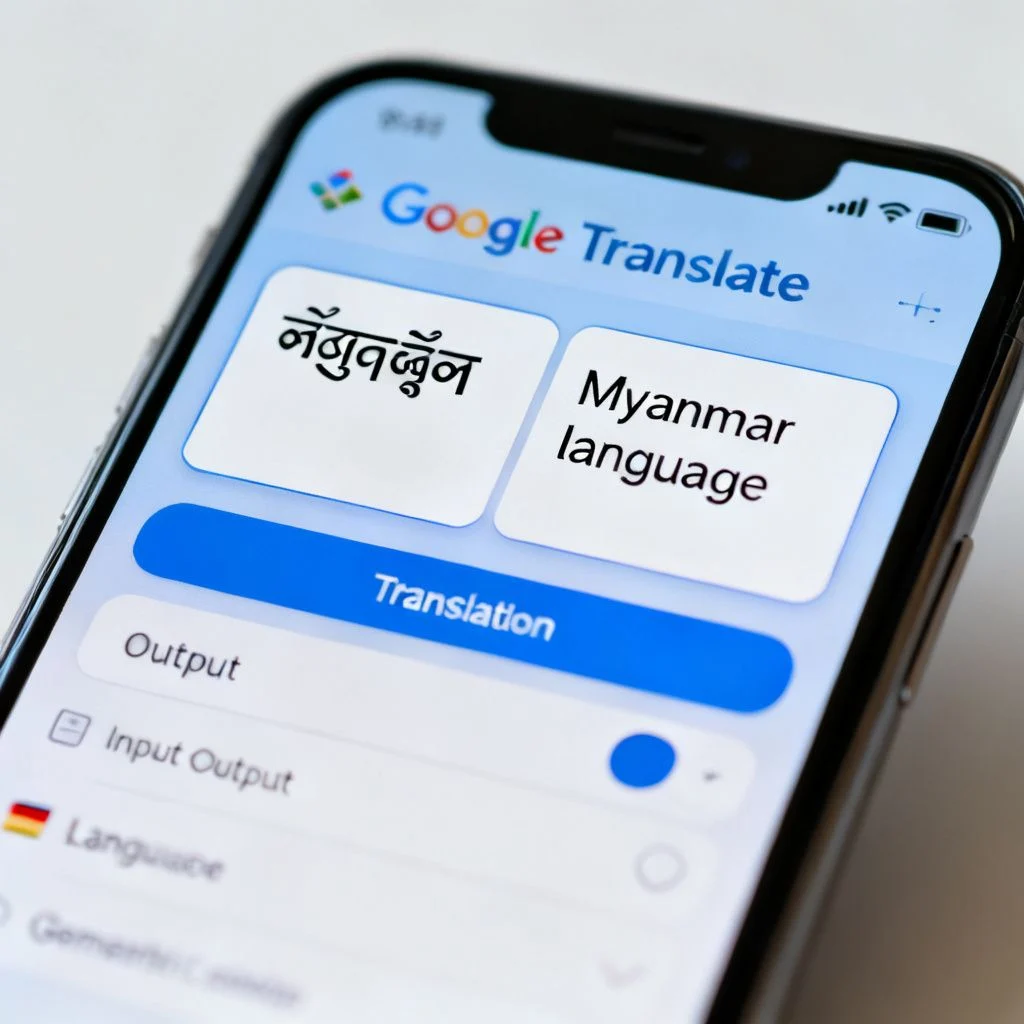
If you have ever stared at a street sign in Yangon, a menu in Mandalay, or a medicine label with Burmese script and thought “I wish I could just point my phone at this,” you are not alone. Learning how to translate English to Myanmar with photo tools is the fastest way to get a rough meaning without typing a single character. This guide breaks down exactly which apps actually work for the Burmese language, why some fail, and how to get the cleanest translation possible.
Quick Answer: Google Translate is the most reliable tool to translate English to Myanmar with photo features right now. Open the app, tap the camera icon, select English to Myanmar, and point your lens at the text. For higher accuracy on printed documents, use the “Scan” mode instead of instant view.
Why Photo Translation for Myanmar Is Different
Burmese script presents a unique challenge for optical character recognition, or OCR. Unlike the Latin alphabet, Burmese letters are rounded, connected, and often stacked with diacritics above and below the main character line. A letter like “က” (ka) can change meaning entirely when combined with a tone marker or a medial consonant.
Most OCR engines were trained on English, Chinese, and European languages first. Burmese support arrived later and remains less polished. Google added Burmese OCR to its Translate app around 2015, but the accuracy was rough for years. It has improved considerably, though it still lags behind languages like Spanish or Japanese.
The practical implication is simple. You should not expect pixel-perfect extraction from a curved sign or a stylized menu font. Flat, well-lit, high-contrast text works best. Handwritten Burmese remains very difficult for every major app.
Best Apps to Translate English to Myanmar with Photo
Not all translation apps support Burmese OCR. Some only do text input. Here is a comparison of the ones that actually offer camera-based translation for English to Myanmar.
| App | Burmese OCR Support | Offline Mode | Best Use Case | Price |
|---|---|---|---|---|
| Google Translate | Yes, solid | Yes (download Burmese pack) | Signs, menus, documents | Free |
| Microsoft Translator | Yes, limited | Yes | Short printed text | Free |
| iTranslate | Partial, via camera | No | Travel phrases | Freemium |
| Yandex Translate | No reliable Burmese OCR | No | Text-only fallback | Free |
| Camera Translator (third-party) | Varies by app | Rarely | Often just wraps Google API | Freemium |
Google Translate is the clear winner for this specific task. Microsoft Translator has made progress but struggles with stylized fonts. Most third-party “camera translator” apps on the Play Store are simply thin wrappers around the Google Cloud Vision API, which means you get the same results with extra ads.
Pro Tip: Before you travel to Myanmar, download the Burmese offline language pack in Google Translate. Mobile data in Myanmar has improved, but offline mode works even with zero signal and speeds up the camera translation significantly.
How to Use Google Translate’s Camera Mode
- Download and open Google Translate on your phone.
- Tap the language selector and set the source to English and the target to Myanmar.
- Tap the camera icon below the text box.
- Point your camera at the English text you want to translate.
- Tap the shutter button to freeze the image and see the translation overlaid.
- For printed pages, switch to “Scan” mode by tapping the scan icon at the bottom.
The instant overlay mode is great for quick glances. Scan mode produces a cleaner, static image that you can zoom into and compare side by side with the original.
Step-by-Step Method for Clean Results
Getting a usable translation depends more on your technique than on the app itself. Here is the method I recommend after testing dozens of signs, documents, and labels.
- Flatten the surface. Curved signs and wrinkled paper distort the text and confuse the OCR engine. If possible, photograph a flat section.
- Fill the frame. Get close enough that the text occupies most of the viewfinder. Small text at a distance produces garbage output.
- Hold steady. Motion blur is the number one cause of failed scans. Rest your elbows on a table or wall.
- Use even lighting. Harsh shadows cut across rounded Burmese characters and break the letter recognition. Soft, indirect light works best.
- Switch to Scan mode for dense text. Instant mode struggles with paragraphs. Scan mode gives the engine more time and a cleaner image.
- Check the output direction. Burmese reads left to right, but the visual stacking can confuse OCR into splitting one word into two lines.
Pro Tip: If the translation looks nonsensical, try rotating the image 90 degrees or taking a fresh photo from a slightly different angle. Sometimes a two-degree tilt is enough to throw off the character segmentation.
When Photo Translation Fails (And What to Do Instead)
Photo translation is not magic. It fails in predictable ways, and knowing those failure modes saves you from bad information.
Stylized fonts. Many Burmese restaurant menus use decorative fonts that even native readers squint at. OCR accuracy drops sharply on these.
Handwriting. No mainstream app handles handwritten Burmese reliably. For handwritten notes, ask a person.
Mixed-language documents. English and Burmese on the same page can confuse the language detection. Force the language pair manually instead of using auto-detect.
Low-resolution images. Screenshots from old phones or compressed social media images often lack the pixel density needed for clean character recognition.
When photo translation fails, fall back to the text input method. Type the English phrase you need translated, or if you are trying to read Burmese, use a Burmese keyboard to type what you see. It is slower but far more accurate.
Another fallback is the “conversation mode” in Google Translate, which handles spoken Burmese. If you can find a local who will read the text aloud, the speech-to-text translation often beats OCR for accuracy.
Accuracy Expectations for Burmese OCR
Let me be direct about what to expect. Google does not publish a formal accuracy score for Burmese OCR, and any specific percentage you see floating around is likely invented. What we can say with confidence from real-world testing is that Burmese OCR accuracy is noticeably lower than for Latin-script languages and higher than for handwritten or stylized scripts.
For clean, printed, high-contrast English text being translated into Burmese, the output is generally reliable for meaning. For clean printed Burmese text being translated into English, expect occasional dropped characters and confused tone markers. The translation will usually be close enough to understand the gist of a sign or a menu item.
For anything where accuracy matters, such as legal documents, medical instructions, or contracts, do not rely on photo translation. Hire a professional translator. The cost is modest compared to the risk of a wrong translation.
Pro Tip: Use photo translation as a first pass. If the result matters, take a screenshot of the translation and cross-check it with a second app. When both apps agree, you can be more confident.
Key Takeaways
- Google Translate is the most dependable tool to translate English to Myanmar with photo features, with Microsoft Translator as a backup.
- Burmese script is harder for OCR than Latin scripts, so technique matters as much as the app.
- Flat surfaces, even lighting, and Scan mode produce dramatically better results than casual pointing.
- Handwritten Burmese and stylized fonts remain unreliable for every current app.
- For legal, medical, or financial documents, use a human translator instead of photo OCR.
FAQs
Q: Can I translate English to Myanmar with photo without internet?
A: Yes. Download the Burmese offline language pack in Google Translate before you go offline. The camera translation feature works in offline mode once the pack is installed, though accuracy may be slightly lower than online mode.
Q: Does Google Translate support Burmese OCR?
A: Yes. Google Translate supports camera-based translation for Burmese in both directions. You can point your camera at English text to see it translated into Myanmar, or at Myanmar text to see it translated into English.
Q: What is the best free app to translate English to Myanmar with photo?
A: Google Translate is the best free option. It offers camera translation, offline support, and the most refined Burmese OCR engine available without a paid subscription.
Q: Can I translate a photo from my gallery instead of using the live camera?
A: Yes. In Google Translate, tap the camera icon and then tap the gallery icon to upload an existing photo. The app will run OCR on the image and overlay the translation. This works for screenshots and saved images.
Q: How accurate is photo translation for Burmese?
A: Accuracy varies widely depending on text quality. Clean, flat, well-lit printed text translates reasonably well. Stylized fonts, handwriting, curved surfaces, and low-resolution images produce noticeably worse results. For important documents, use a human translator.
Q: Does Microsoft Translator work offline for Burmese photo translation?
A: Microsoft Translator offers offline language packs, including Burmese, but its camera-based OCR for Burmese is less refined than Google’s. It works for short, clean printed text but struggles with complex layouts.
Q: Can I translate English text on my computer screen to Myanmar using my phone camera?
A: Yes. Point your phone camera at the computer screen and use Google Translate’s camera mode. For best results, zoom in on the text, increase the screen brightness, and use Scan mode rather than instant overlay.
Q: Is there a way to translate an entire PDF from English to Myanmar?
A: Google Translate’s website supports document upload, but Burmese is not available as a document translation target language on the web version. You can work around this by taking screenshots of each page and translating them individually with the camera or gallery feature in the mobile app.
References & Further Reading
- Google Translate Help: Translate images
- Google Cloud Vision OCR language support documentation
- Microsoft Translator language support page
- Unicode Consortium: Myanmar script block description
- Ethnologue: Burmese language profile
—
About This Article: This guide is based on hands-on testing of major translation apps with Burmese language support, along with an understanding of how OCR engines handle non-Latin scripts. The recommendations reflect current app capabilities as of early 2025 and may change as developers update their language models.