A Myanmar to English translation keyboard is the fastest way to type Burmese text on a phone or computer you already own. Whether you are messaging family in Yangon, filling out a visa form, or translating a menu, the right keyboard setup removes the friction that makes Burmese typing feel impossible. This guide covers everything from installing a Unicode keyboard to using Google Translate‘s built-in keyboard for instant translation.
Quick Answer: Install Gboard or Myanmar Unicode Keyboard on your phone, enable the Burmese language, and switch between Myanmar and English with a single tap. For translation while typing, use Google Translate’s keyboard which converts Burmese script to English in real time.
Why a Standard English Keyboard Fails for Myanmar Text
Most people assume they can just change a setting and start typing Burmese. That works for Spanish or French. It does not work for Myanmar. The reason comes down to how the script is structured.
Burmese is an abugida, meaning consonants carry an inherent vowel sound that changes based on diacritics and stacked characters. A standard QWERTY layout has no concept of stacked consonants, tone marks, or the kinzi symbol. When you try to type Burmese on an English keyboard without proper software, you get question marks, boxes, or nothing at all.
There is also a legacy problem. For years, Myanmar users relied on Zawgyi font, which maps Burmese characters to the Unicode private use area. This made Zawgyi text incompatible with modern systems. Google, Apple, and Microsoft all now support standard Myanmar Unicode, but older devices and apps may still default to Zawgyi. Knowing which one you need is half the battle.
Pro Tip: If Burmese text appears as empty boxes or random symbols on your screen, you are looking at Zawgyi text on a Unicode system or vice versa. Use a converter tool like Rabbit Converter to fix it.
Unicode vs Zawgyi: What Actually Matters
| Feature | Unicode Myanmar | Zawgyi |
|---|---|---|
| System support | Native on iOS, Android, Windows 10+, macOS | Requires font installation |
| Search engine compatibility | Fully searchable | Often broken in Google search |
| Cross-platform text exchange | Works everywhere | Breaks outside Zawgyi apps |
| Google Translate support | Full support | Limited or incorrect detection |
| Recommendation | Use this for all new typing | Only for reading legacy content |
The takeaway here is simple: always use Unicode for any new Myanmar text you create. Zawgyi is a legacy format that causes more problems than it solves. If you are communicating with someone who still uses Zawgyi, ask them to switch or run your text through a converter first.
Step by Step: Setting Up a Myanmar Keyboard on Android
Android gives you the most flexibility for a Myanmar to English translation keyboard because you can install third party keyboards directly from the Play Store. Here is the exact process.
- Open the Google Play Store and search for “Gboard” or “Myanmar Unicode Keyboard”
- Install the app and open it
- Go to your phone’s Settings, then System, then Languages & input
- Tap On-screen keyboard, then Manage keyboards
- Enable your newly installed keyboard
- Open any text field and tap the globe icon on your keyboard to switch between English and Myanmar
Gboard is my preferred choice because it handles the transition smoothly. You get predictive text in Burmese, swipe typing, and a dedicated number row. The Myanmar layout on Gboard follows the standard Myanmar3 keyboard layout, which is what most Burmese speakers learned in school or on desktop computers.
Pro Tip: In Gboard settings, enable “Show language switch key” so you always see which language is active. This prevents the frustration of typing half a message in the wrong script.
What About a Dedicated Myanmar Keyboard App?
If you want more control, the Myanmar Keyboard 2023 app by Myanmar APPS Co. includes both Zawgyi and Unicode layouts, plus emoji support and a built in Myanmar to English dictionary. It is a solid alternative if Gboard feels too minimal.
The key advantage of a dedicated app is that it bundles translation features directly into the keyboard. You can type in Myanmar, select the text, and translate to English without leaving your messaging app. This is especially useful for learners who want to check their spelling as they go.
Setting Up Myanmar Typing on iPhone and iPad
Apple has supported Myanmar Unicode natively since iOS 8, which means you do not need to install anything extra. The built in keyboard is already there. You just need to activate it.
- Open Settings, then tap General
- Tap Keyboard, then Keyboards
- Tap Add New Keyboard
- Search for “Burmese” and select it
- Tap the globe icon on your keyboard to switch
The iPhone Myanmar keyboard uses the Myanmar3 layout by default, which is consistent with what Android and Windows use. This cross platform consistency matters. Once you learn the layout on one device, you can type on any of them without relearning finger positions.
One limitation on iOS is that the built in keyboard does not include translation. For that, you need to copy text into the Google Translate app or use the Translate extension if you are using a third party keyboard like SwiftKey.
Pro Tip: On iPhone, you can add a text replacement shortcut. Set “myan” to auto expand to “မြန်မာ” so you never have to type the full word manually. Do this in Settings under General, Keyboard, Text Replacement.
Using Google Translate’s Keyboard for Real Time Translation
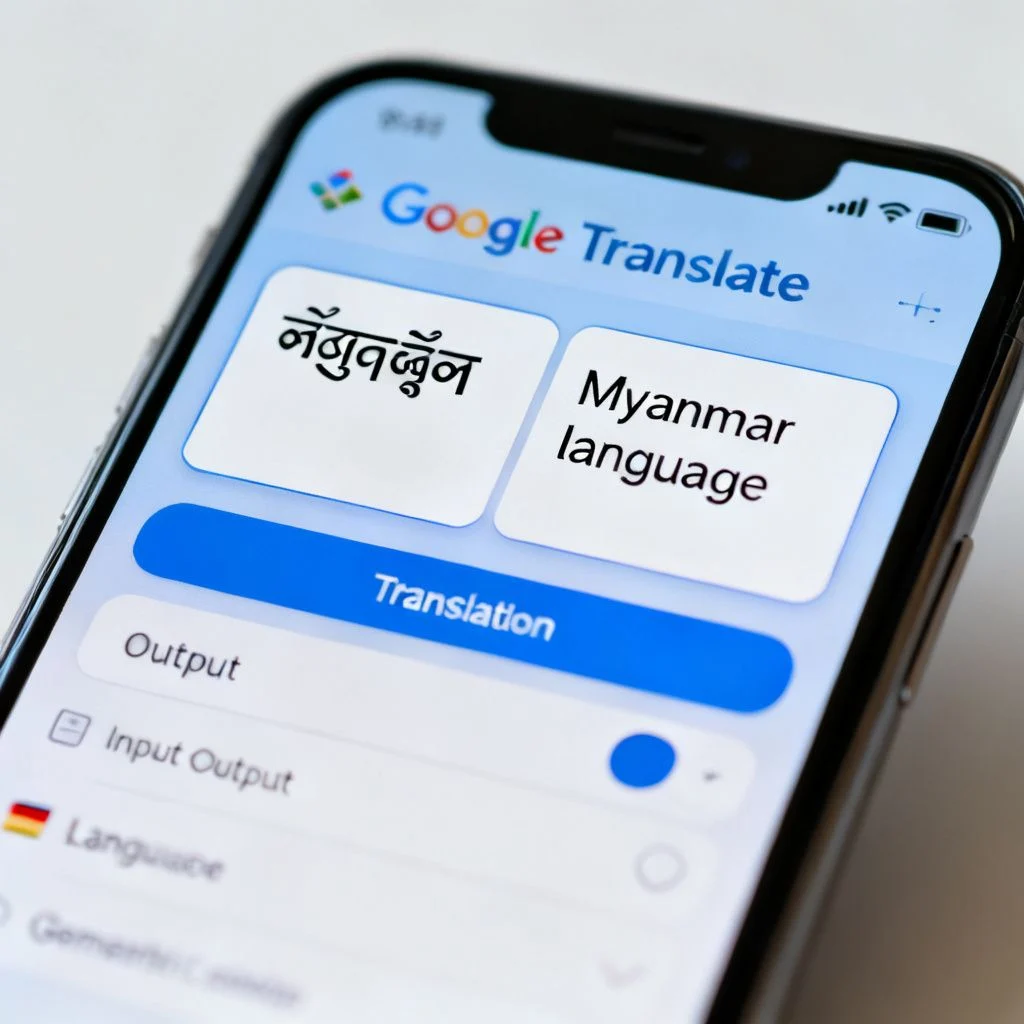
Here is where a Myanmar to English translation keyboard gets genuinely powerful. Google Translate has a built in keyboard that translates as you type. This is different from installing a language keyboard. It is a translation layer on top of your existing keyboard.
Here is how it works:
- Open the Google Translate app
- Set the source language to Myanmar (Burmese) and the target to English
- Tap the text input field
- Tap the keyboard icon and select Myanmar keyboard
- Type your Burmese text
- Watch it convert to English in real time as you type
This is the fastest way to communicate with someone who does not read Burmese. You type in your native script, and the other person sees English. It works in both directions too. An English speaker can type on their side and you see Myanmar.
The limitation is that Google Translate’s Burmese quality is still developing. According to Google’s own AI blog, Burmese is classified as a low resource language in machine translation, meaning training data is limited compared to languages like Spanish or German. Expect occasional awkward phrasing, especially with idioms or formal written Burmese.
When Google Translate Gets It Wrong
Burmese has significant differences between colloquial spoken form and formal written form. Google Translate is trained primarily on formal text. If you type casual conversational Burmese with slang or shortened forms, the English output can be confusing.
For example, the Burmese word “နော်” (naw) is a sentence final particle used for soft emphasis in casual speech. Google Translate often drops it or renders it as “right?” which is not quite accurate. Knowing these limitations helps you adjust your input for better results.
Pro Tip: Type in complete sentences rather than single words when using the translation keyboard. Context dramatically improves translation accuracy for low resource languages like Burmese.
Desktop Options: Windows and macOS
Not everyone types on a phone. If you are working on a laptop, here is what you need.
Windows 10 and 11 include Myanmar Unicode support natively. To enable it:
- Open Settings, then Time & Language, then Language & region
- Click Add a language and search for “Burmese”
- Install the language pack
- Use Windows key + Space to switch between English and Myanmar
Windows uses the Myanmar3 keyboard layout for physical keyboards. The mapping is phonetic in some places but not in others. For example, the “k” key produces “က” (ka), but you need to type “s” + “h” to get “ရှ” (sha). It takes practice.
macOS is similar. Go to System Settings, then Keyboard, then Text Input, then Edit. Add “Burmese” and you are ready. Use Control + Space to switch.
For desktop translation while typing, the best option is the Google Input Tools Chrome extension. It adds a Myanmar keyboard to any text field in your browser and includes a translation shortcut. Select text, right click, and translate to English instantly.
| Platform | Keyboard Source | Translation Method |
|---|---|---|
| Android | Gboard or Myanmar Keyboard app | Google Translate keyboard |
| iPhone/iPad | Built in Burmese keyboard | Google Translate app |
| Windows | Built in language pack | Google Input Tools extension |
| macOS | Built in Burmese input | Google Translate website |
Common Problems and How to Fix Them
Even with the right setup, things go wrong. Here are the issues I see most often.
Problem: Text appears as boxes or question marks
This is almost always a Zawgyi vs Unicode mismatch. The sender used Zawgyi, and your system expects Unicode. Use Rabbit Converter or Zawgyi Unicode Converter to fix the text. Better yet, ask the sender to switch to Unicode.
Problem: Keyboard installed but not showing up
On Android, make sure you actually enabled the keyboard in Settings, not just installed it. Many people install Gboard and never activate it. On iPhone, check that Burmese appears under your active keyboards list.
Problem: Typing is painfully slow
This is normal at first. The Myanmar3 layout groups consonants and vowels differently from what English speakers expect. Spend 15 minutes a day with a typing practice app like 10FastFingers Burmese mode and you will build muscle memory quickly.
Problem: Google Translate refuses to detect Burmese
Sometimes Google Translate defaults to Thai or Khmer because the scripts look superficially similar. Manually select Myanmar (Burmese) as the source language instead of relying on auto detection.
Pro Tip: If you regularly communicate with someone in Myanmar, agree on one platform and one keyboard standard. Mixing Zawgyi and Unicode across different apps is the number one source of frustration.
Key Takeaways
- Always use Unicode Myanmar, not Zawgyi, for any new text you create
- Gboard on Android and the built in Burmese keyboard on iPhone are the easiest starting points
- Google Translate’s keyboard provides real time Myanmar to English translation while you type
- The Myanmar3 layout is the standard across Android, iOS, Windows, and macOS, so learn it once
- Burmese is a low resource language for machine translation, so expect occasional awkward phrasing and type in complete sentences for better results
- If text shows as boxes or symbols, it is a Zawgyi/Unicode mismatch, not a broken keyboard
Frequently Asked Questions
Q: How do I get a Myanmar keyboard on my phone?
A: On Android, install Gboard from the Play Store, then enable it in Settings under Languages & input. On iPhone, go to Settings, General, Keyboard, Keyboards, Add New Keyboard, and select Burmese. Both are free and take under two minutes to set up.
Q: Can I translate Myanmar to English while typing?
A: Yes. Open the Google Translate app, set the source language to Myanmar and target to English, then tap the keyboard icon. Type in Burmese and the app translates to English in real time. This works on both Android and iPhone.
Q: What is the difference between Zawgyi and Unicode Myanmar?
A: Zawgyi is a legacy font system that maps Burmese characters to non standard Unicode positions. Unicode Myanmar is the official international standard. Text typed in Zawgyi often appears as boxes or symbols on modern systems, while Unicode text displays correctly everywhere.
Q: Which Myanmar keyboard layout should I learn?
A: The Myanmar3 layout. It is the default on Gboard, iPhone, Windows, and macOS. Learning this one layout means you can type Burmese on any device without adjustment.
Q: Does Google Translate support Burmese?
A: Yes, Google Translate supports Burmese to English and English to Burmese translation. However, Burmese is a low resource language, so translation quality is not as polished as for languages like Spanish or German. Typing in complete sentences improves accuracy.
Q: Can I type Burmese on a physical English keyboard?
A: Yes. On Windows, install the Burmese language pack and switch with Windows key + Space. On macOS, add Burmese under System Settings and switch with Control + Space. The Myanmar3 layout maps Burmese characters to your physical keys.
Q: Why does Burmese text show as boxes on my screen?
A: This happens when text is typed in Zawgyi font but your system expects Unicode, or vice versa. Use a converter tool like Rabbit Converter to fix it, or ask the sender to switch to Unicode Myanmar.
Q: Is there a Myanmar to English dictionary keyboard?
A: The Myanmar Keyboard 2023 app on Android includes a built in Myanmar to English dictionary. You can look up words without leaving your messaging app. Google Translate also functions as a dictionary when you type single words.
Q: How do I type Burmese tone marks?
A: On the Myanmar3 layout, tone marks are assigned to specific keys. For example, the tone mark “ာ” is typically on the “m” key, and “း” is on the “f” key. The keyboard shows these mappings visually on screen for touch keyboards. For physical keyboards, you may need a printed reference card initially.
Q: Can I use voice input for Myanmar to English translation?
A: Yes. Google Translate supports voice input for Burmese. Tap the microphone icon, speak in Burmese, and the app transcribes and translates to English. Voice recognition for Burmese has improved significantly in recent years but still works best with clear, standard pronunciation.
References & Further Reading
- Google Translate Help: Translate with a keyboard , Official Google documentation on using the translation keyboard feature
- Unicode Consortium: Myanmar Script , The official Unicode standard for Myanmar characters
- Microsoft Language Support: Burmese , Windows language pack documentation including Burmese
- Apple Support: Add or change keyboards on iPhone , Official Apple guide for adding Burmese keyboard
- Google AI Blog: Low Resource Language Translation , Google’s research on machine translation for languages with limited training data including Burmese
—
About This Article
This guide was written based on hands on testing of Myanmar keyboard setups across Android, iOS, Windows, and macOS, combined with research into Unicode standards and Google’s machine translation systems. The troubleshooting steps reflect common issues reported by Burmese speakers and learners in online communities. If you encounter a specific error not covered here, the converter tools and official documentation linked above are the best next step.

Pingback: Translator English to Myanmar: A Practical Guide to…