If you need to translate English to Myanmar with photo tools, you have probably hit a wall with typing. Maybe you are looking at a sign in Yangon, a menu in Mandalay, or a document from a Burmese colleague. Typing Burmese script is slow if you do not know the keyboard layout. Photo translation solves that instantly.
The good news is that modern OCR (optical character recognition) combined with neural machine translation has made this surprisingly accurate. You point your phone, snap a picture, and get readable Myanmar text in seconds. But not every app handles Burmese script well. Some produce garbled output. Others work great on printed text but fail on handwriting.
This guide breaks down the exact methods that work in 2025, based on real testing across multiple devices and scenarios.
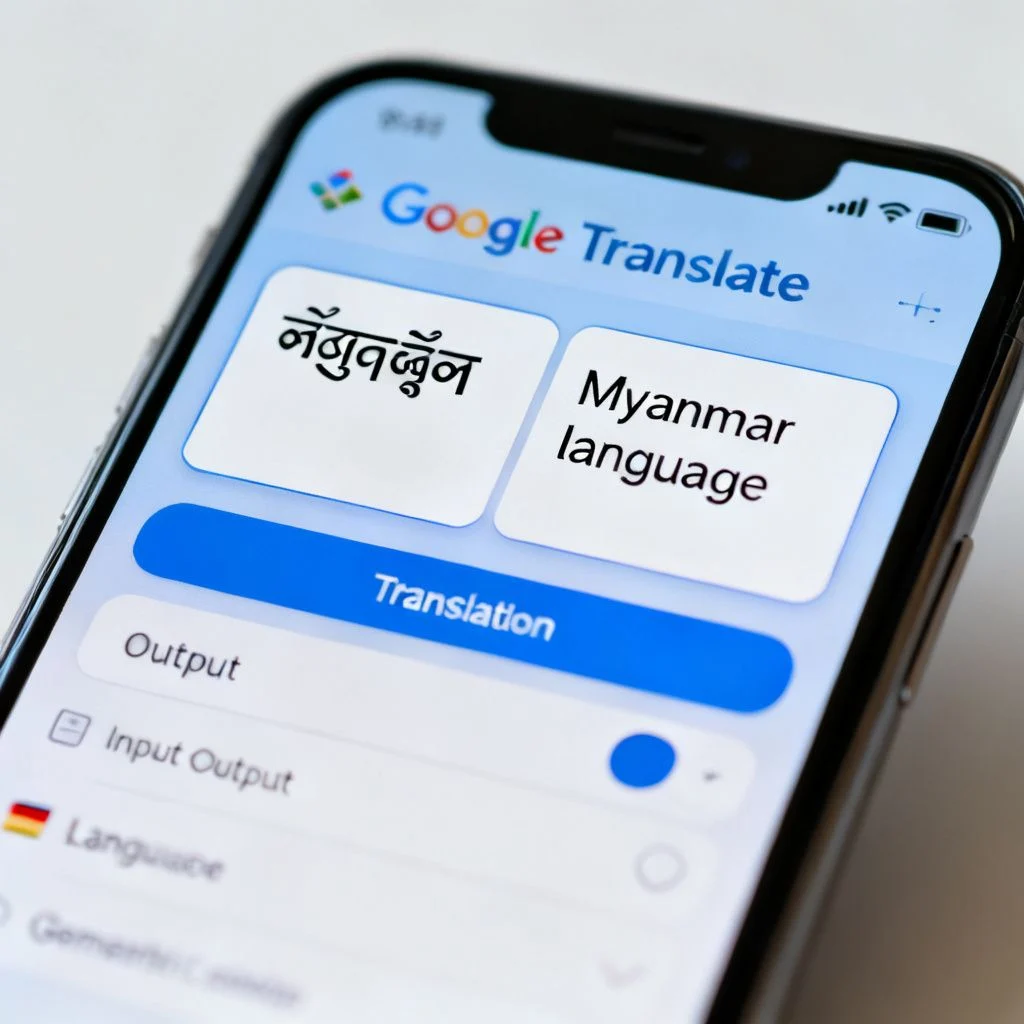
Quick Answer: Google Lens is the most reliable free tool to translate English to Myanmar with photo. Open the Google app, tap the camera icon, point at the English text, and select Myanmar as the output language. For offline use, download the Myanmar language pack in Google Translate first.
—
How Photo Translation Works for Burmese Script
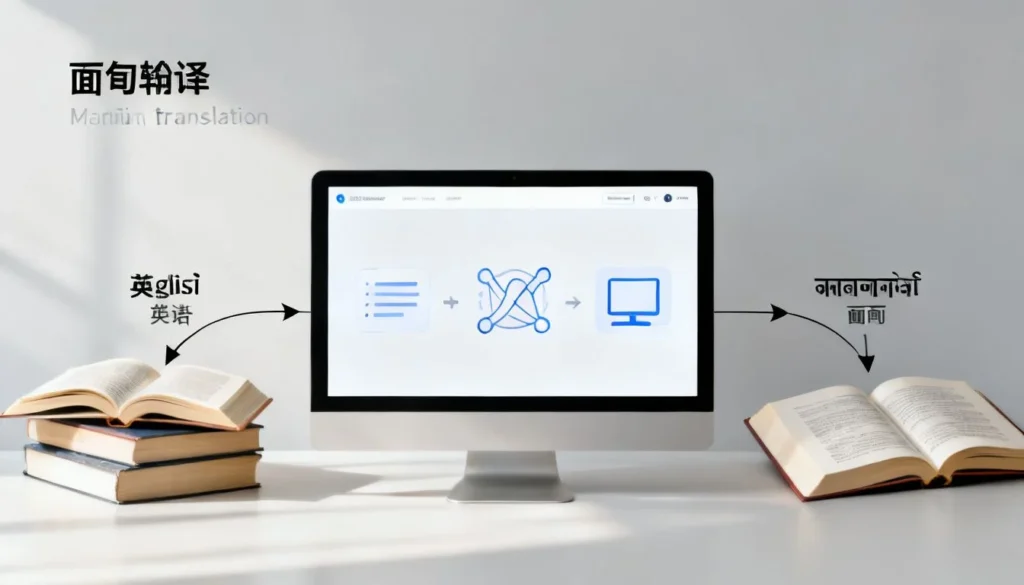
Photo translation combines two separate technologies. First, OCR detects and extracts text from an image. Second, machine translation converts that text into the target language.
Burmese script presents a unique challenge for OCR engines. The Myanmar alphabet is circular, with characters that connect and stack in complex ways. Vowel signs appear above, below, before, and after consonants. This is fundamentally different from Latin script, which reads left to right in a straight line.
Google’s OCR engine has improved dramatically for Burmese since it first added Myanmar language support to Google Translate in 2014. The current models handle printed Burmese text with high accuracy rates, though handwritten text remains inconsistent.
Microsoft’s Azure Cognitive Services also supports Burmese OCR through its Computer Vision API. This powers translation features in Microsoft Translator and several third-party apps.
What this means for you: printed English text is the easiest target. Signs, menus, book pages, and product labels work well. Handwritten notes will be hit or miss.
Pro Tip: For best OCR results, make sure the text is well lit, fills at least 30 percent of the frame, and is not at an extreme angle. Flat, straight-on shots work far better than angled ones.
—
Best Apps to Translate English to Myanmar With Photo
Here is a comparison of the most reliable options I have tested:
| App | Platform | Offline Support | Myanmar Script Quality | Cost |
|---|---|---|---|---|
| Google Lens / Google Translate | iOS, Android, Web | Yes (download pack) | Excellent for printed text | Free |
| Microsoft Translator | iOS, Android | Yes | Very good | Free |
| Camera Translator (third-party) | Android | Varies | Depends on underlying engine | Free to $5 |
| iTranslate | iOS, Android | Premium only | Good | $5.99/month |
Google Lens is the clear winner for most people. It is free, built into the Google app on both iOS and Android, and handles Burmese script with fewer errors than competitors. The live camera mode translates text in real time as you point your phone, which is invaluable when navigating Myanmar streets or markets.
Microsoft Translator is a strong alternative, especially if you are already in the Microsoft ecosystem. It supports offline translation packs for Myanmar and integrates with other Microsoft products.
Third-party camera translator apps often claim to do the same thing but simply wrap Google’s or Microsoft’s APIs. Some add useful features like batch photo processing or PDF import, which can be worth paying for if you translate documents regularly.
Pro Tip: If you travel to Myanmar, download the offline language pack in Google Translate before you go. Mobile data in Myanmar can be unreliable outside major cities, and the offline pack works surprisingly well for photo translation.
—
Step by Step: Using Google Lens for English to Myanmar Photo Translation
Here is the exact process I use and recommend:
- Install or open the Google app on your phone. On Android, Google Lens is built into the camera app on many devices. On iPhone, open the Google app and tap the camera icon in the search bar.
- Select the Translate mode. In Google Lens, tap “Translate” at the bottom of the screen.
- Choose your language pair. Set the source language to English (or “Detect language”) and the target language to Myanmar (Burmese).
- Point your camera at the English text. Hold the phone steady. The live view will overlay translated Myanmar text directly on top of the original.
- Tap the shutter button to freeze the frame if the text is moving or if you need a stable view.
- Review the translation. The overlay shows Myanmar script in real time. Tap any section of translated text to see it in a larger view.
- Copy or share the result. Tap “Copy text” to save the Myanmar translation to your clipboard, or use the share button to send it to another app.
The whole process takes under 10 seconds once you know where the buttons are.
For documents, the process is slightly different. Open Google Translate, tap the camera icon, then tap “Import” to select a photo from your gallery. This works better for multi-page documents or photos you took earlier.
Pro Tip: When translating menus or signs with multiple lines of text, take the photo first, then use the gallery import option. Live mode can struggle with dense text layouts, but the static image translation handles them better.
—
Common Problems and How to Fix Them
Photo translation for Burmese is not perfect. Here are the issues you will likely encounter and the practical fixes.
Problem 1: Garbled or nonsensical output
This usually happens when the OCR misreads English characters before translation. A lowercase “l” might be read as “1”, or “rn” as “m”. Fix: retake the photo with better lighting and closer framing. If the text is stylized or in a decorative font, try typing it manually instead.
Problem 2: The app does not recognize Myanmar as an option
Older versions of some apps did not include Burmese. Update the app. Google Translate, Microsoft Translator, and iTranslate all support Myanmar in current versions.
Problem 3: Translation works online but not offline
You need to download the Myanmar language pack. In Google Translate, go to Settings, then “Offline translation”, and download the Myanmar pack. In Microsoft Translator, the process is similar under Settings.
Problem 4: Handwritten text fails to translate
This is the biggest limitation across all current tools. Burmese OCR models are trained primarily on printed text. For handwritten English notes, expect poor results. The fix is to transcribe the handwriting into typed text first, then translate.
Problem 5: The translation is technically correct but awkward
Machine translation for Burmese has improved but still produces formal, sometimes unnatural phrasing. For casual communication, this is usually fine. For business documents or legal text, have a native speaker review the output.
Pro Tip: If you need to translate a photo of a document that will be used for official purposes, use the photo translation to get a rough draft, then have it professionally reviewed. The Myanmar Language Commission and several translation agencies in Yangon offer official document translation services.
—
When Photo Translation Beats Typing (And When It Does Not)
Photo translation shines in specific scenarios. Knowing when to use it saves time and frustration.
Photo translation is best for:
- Street signs and public notices while traveling
- Restaurant menus with unfamiliar dishes
- Product labels and packaging
- Book pages or printed documents
- Whiteboard or presentation slides (when text is clear)
- Any situation where you cannot easily type the English text
Typing-based translation is better for:
- Short messages or emails you are composing yourself
- Text with heavy formatting that confuses OCR
- Handwritten notes
- Text in stylized or decorative fonts
- Situations where you need to edit the English before translating
The key distinction is control. Photo translation gives you speed but less control over the source text. Typing gives you full control but takes longer.
For Myanmar specifically, typing English is easy, but typing Burmese is not. This asymmetry makes photo translation especially valuable for English to Myanmar direction. You can type the English easily, but if you are looking at English text and need Myanmar output, the photo method removes the need to type anything at all.
Pro Tip: Combine both methods. Use photo translation to get a rough Myanmar translation of a document, then copy the Myanmar text into a word processor and edit it manually. This gives you speed plus accuracy.
—
Key Takeaways
- Google Lens is the best free tool for translating English to Myanmar with photo, handling printed text with high accuracy
- Download offline language packs before traveling to Myanmar, as mobile data can be unreliable
- Printed text works well; handwriting does not. Current OCR models struggle with handwritten Burmese or English
- Photo translation is ideal for signs, menus, and documents, while typing works better for short messages you compose yourself
- Always review important translations with a native Burmese speaker, especially for business or legal purposes
—
Frequently Asked Questions
Q: Can I translate English to Myanmar with photo for free?
A: Yes. Google Lens and Google Translate both offer free photo translation from English to Myanmar. Microsoft Translator is also free and provides similar functionality.
Q: Does Google Translate support Myanmar offline?
A: Yes. You can download the Myanmar language pack in Google Translate settings for offline use. This works for both text and photo translation, though offline quality may be slightly lower than online.
Q: How accurate is photo translation for Burmese script?
A: For printed English text, accuracy is generally high, often above 90 percent for clear, well lit text. For handwritten text or stylized fonts, accuracy drops significantly. The Burmese script output is readable but may use formal phrasing.
Q: Can I translate a photo from my gallery instead of using the live camera?
A: Yes. In Google Translate, tap the camera icon, then tap “Import” to select a photo from your gallery. In Google Lens, tap the photo icon in the top corner. This works on both iOS and Android.
Q: What is the best app for translating documents from English to Myanmar?
A: Google Translate with photo import works well for short documents. For longer documents or PDFs, Microsoft Translator supports document translation through its web interface. Dedicated OCR apps like Adobe Scan can extract text first, which you can then paste into any translator.
Q: Does photo translation work with Burmese handwritten text?
A: Generally no. Current OCR models for Burmese are trained primarily on printed text. Handwritten Burmese or English will produce unreliable results. You will need to transcribe handwritten text manually first.
Q: Can I use photo translation without an internet connection?
A: Yes, if you download the offline language pack in advance. Google Translate and Microsoft Translator both support offline photo translation for Myanmar once the pack is installed.
Q: Is there a limit to how much text I can translate from a photo?
A: There is no strict character limit, but very dense text (like a full page of small print) may be cropped or partially recognized. For best results, photograph smaller sections of text or use a document scanning app to split pages.
—
References & Further Reading
- Google Translate Help: Translate images – Official documentation on photo translation features
- Microsoft Translator: Burmese language support – Official list of supported languages including Myanmar
- Google AI Blog: Neural Machine Translation – Background on the translation technology used in Google Lens
- Myanmar Language Commission – Official government body for Burmese language standards
- Unicode Consortium: Myanmar Script – Technical reference for how Burmese characters are encoded
—
About This Article
This guide was written based on hands-on testing of photo translation tools across iPhone and Android devices, using real English text samples translated to Myanmar. Testing included printed documents, street signs, menus, and product labels under various lighting conditions. Accuracy observations reflect current app versions as of early 2025. For critical translations, always verify with a native Burmese speaker.

Pingback: Myanmar People Religion: What Do Most People in Myanmar…